Working with Sample File(s)
You can start exploring iCAD immediately with out requiring to have your own files. For evaluation and testing purposes, we provide test files that you can start with. If you have got such a file, follow below steps to explore.
You can reach out to request a file at support@quanomics.com.
Opening Data files
You can start one of two ways.
Option 1 (Fastest):
Right click on the data file, choose Open With and then pick iCAD as the applicaiton to open the file with.
Option 2: From the interface
Once you have the main iCAD interface open:
-
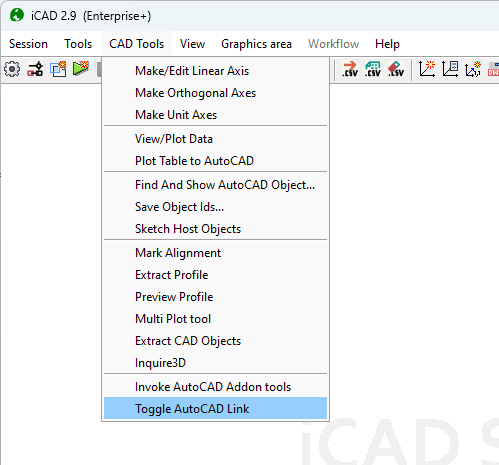
Go to
CAD Tools > Toggle AutoCAD Link. This will allow you to work with out requiring AutoCAD open.
-
Navigate to the location of your sample file, and choose it.
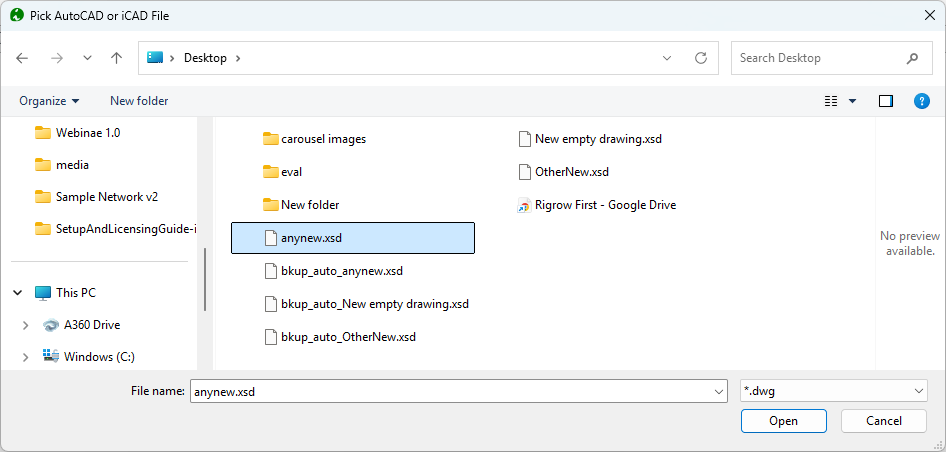
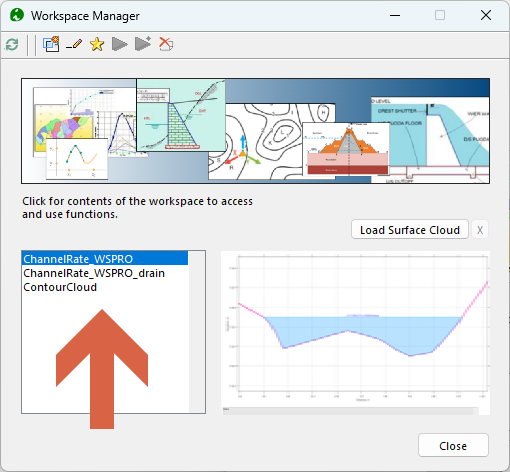
Either way, the Workspace Manager dialog launches as shown below.
<br />
<img src="/WorkSample-images/Image 03.png" style="width:4in">
Quick Introduction to iCAD and its workspace
iCAD workspace normally opens with the main graphics interface empty. It is used to display and interact with sessions.
-
iCAD Modules:
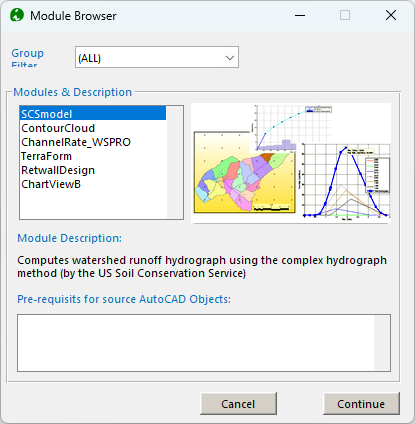
iCAD Modules are specialized applications with in the iCAD product that are designed to tackle well defined design or analysis tasks. There are more than 20 modules in iCAD. Most of these modules are internal, and not visible to the user. You can explore the avilable modules in your version from
Workspace > Create & Run New Sessionmenu ite.
-
Sessions
A Session are instances of Modules that are used to solve a given task. E.g., the design of one specific retaining wall, or the topography of a head work area.
Multiple sessions can be created and saved in to a data file. The list in your data file you just opened above are instances of different modules defined and saves as such.
-
Active Sessions
To run any specific session selected in above interface, it must be active. Active sessions are identified by an asterisk at the end.
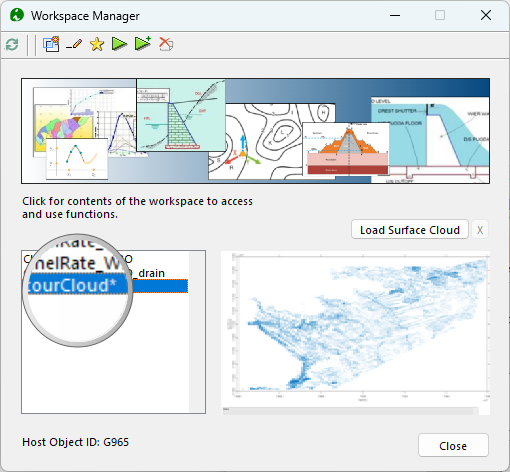
Run a Session
From the Workspace Manager dialog, select one of the sessions, and click on the Star icon on the top to make it the current or active session.
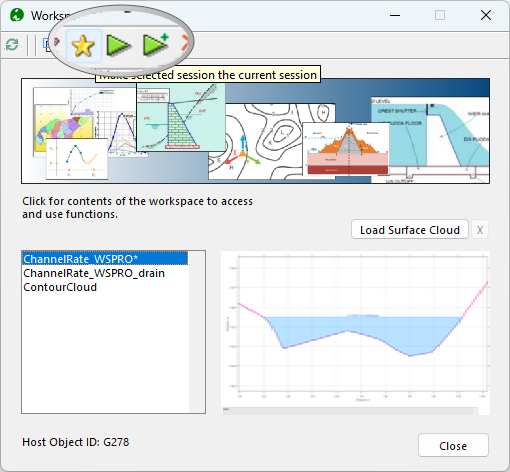
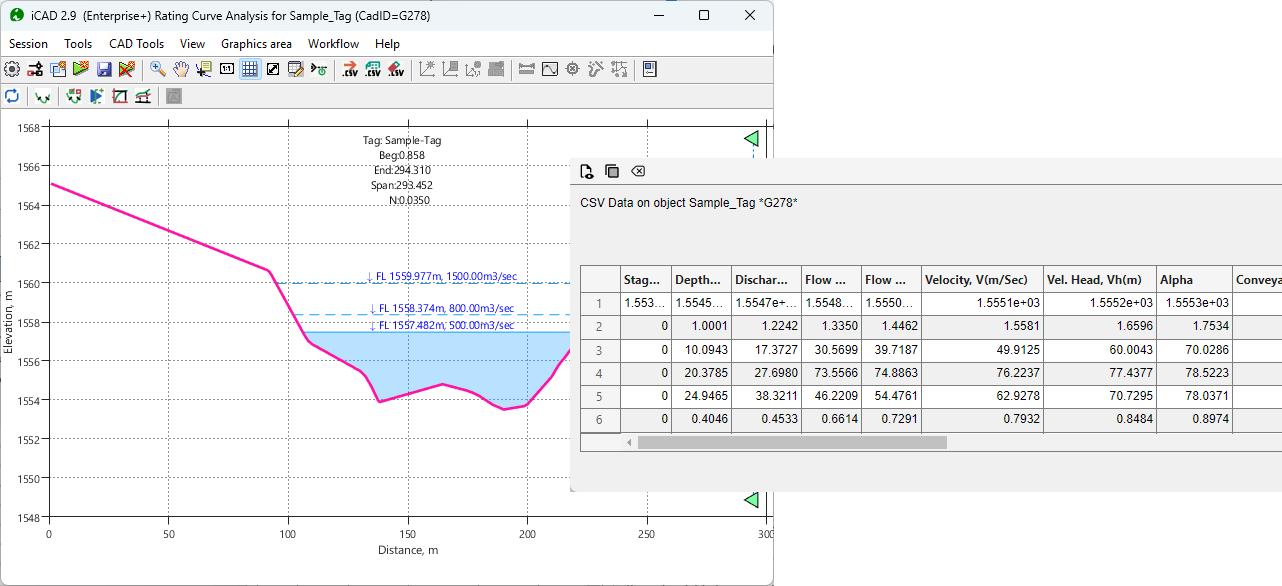
The Run icons will be active. Click on the right one.
This will open the data and solutions of a saved task in the main interface.
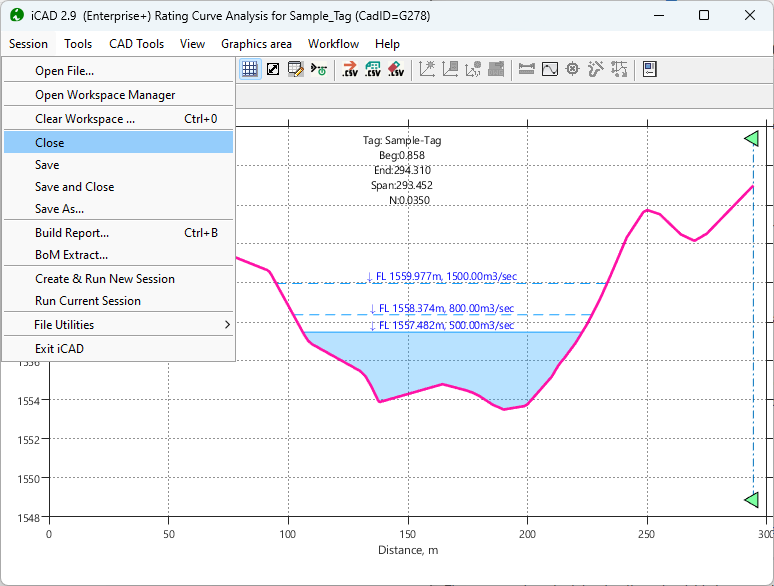
Close a Session
From the Workspace Manager interface, pick Session > Close menu item. This will clear all data from the interface, ready again to run another session.
Next Steps
Play with the sessions that you have on your sample files.
We strongly recommend to open one particular session, and follow the user guide for the specific module from the left pane of thie documentation site. This way you will quickly get to know what each module does, and what parameters you can play with to achieve specific tasks.
Enjoy.