Chart Reading and Digitizing Module
Overview
The ChartView module provides a powerful solution for digitizing engineering charts and graphs, enabling precise value extraction at any desired location. This tool significantly improves accuracy while reducing the time required for manual chart reading—a common task in engineering design workflows.
The module operates with orthogonal chart images where the abscissa (horizontal axis) and ordinate (vertical axis) are perpendicular and properly oriented. This straightforward requirement ensures reliable digitization results across a wide range of engineering charts and technical graphs.
Setting Up and Reading Charts
Before beginning, ensure you have the chart or graph image ready, either saved as a file or open in an application on your computer.
Initiating a Session
Begin by defining a session using the standard ChartView host object, accessible from Tools > Create Host Objects. Upon first opening, the interface displays an empty axis or blank screen—this is the expected starting state.
Load your chart image using Workflow > Load Image... to bring it into the working environment.
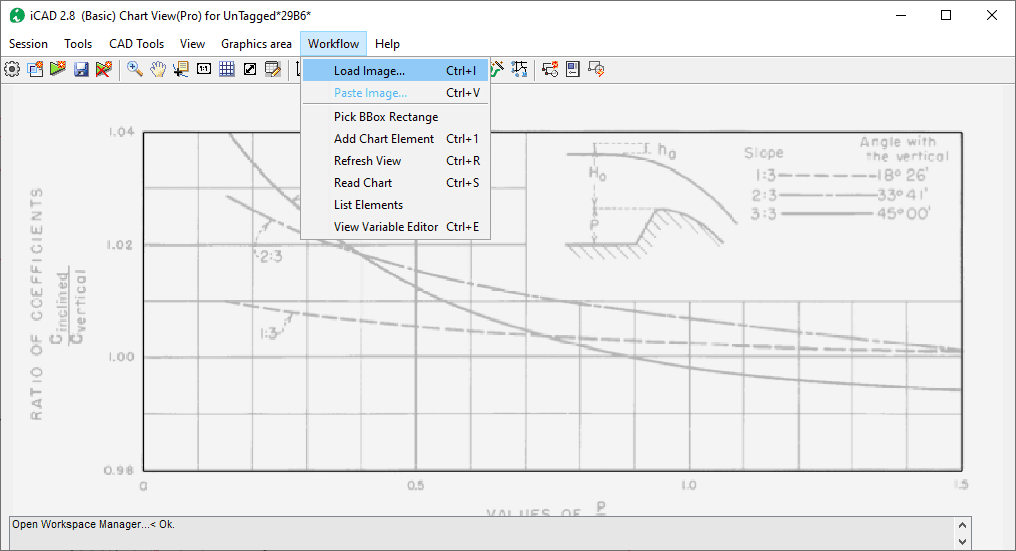
Image loading interface for chart digitization.
Tip: Adjust image transparency for better visibility by accessing
Workflow > Variable Editorand modifying the Transparency Value parameter as needed.
Establishing the Reference Frame
Define the coordinate reference frame by selecting Workflow > Pick BBox Rectangle. Click and drag from the left-bottom corner to the top-right corner of the chart area, ensuring precise alignment with the graph boundaries. The accuracy of this step directly impacts the reliability of all subsequent chart readings.
Access Workflow > Variable Editor to configure the data range for both axes. Specify the scaling type (linear or logarithmic) for each axis according to the chart characteristics.
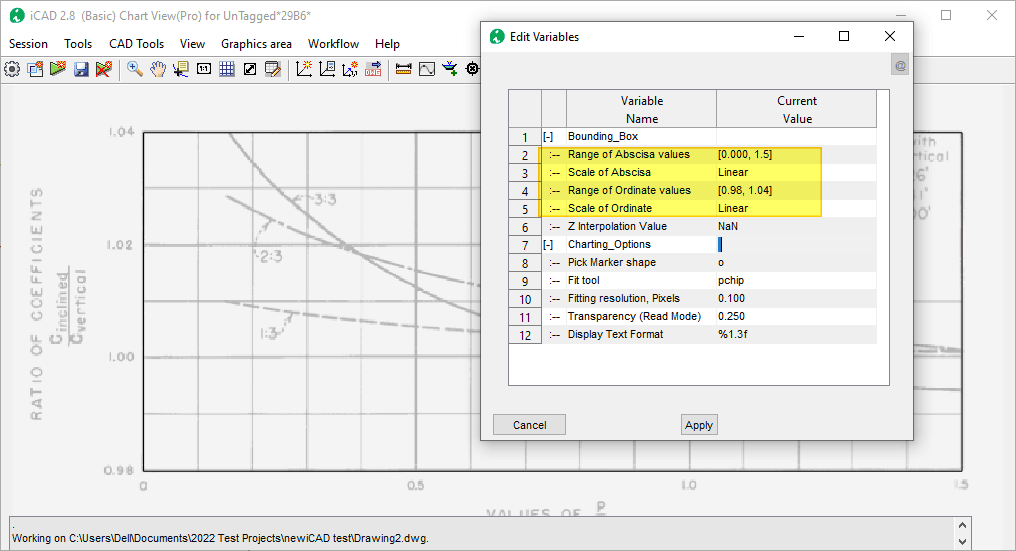
Variable editor showing axis range and scaling configuration.
Digitizing Chart Elements
Create data points by navigating to Workflow > Add Chart Element. The interface enters selection mode, displaying a large crosshair cursor. Pick points along the curve you wish to digitize, following the line as accurately as possible. Complete the input by right-clicking.
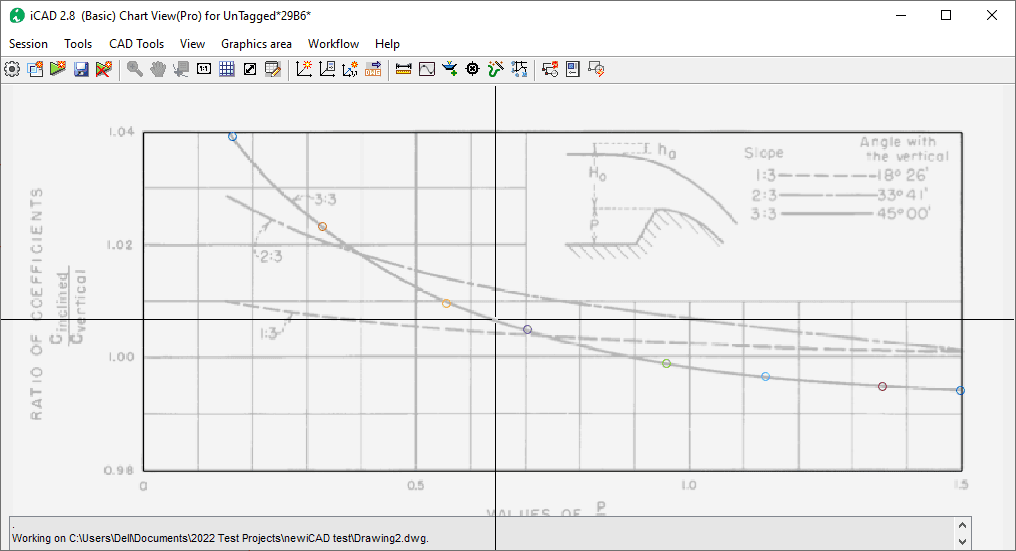
Point selection process for digitizing a chart curve.
The module creates a digital representation of the curve using curvilinear interpolation across the defined data range, ensuring smooth transitions between selected points.
Editing Digitized Points
Fine-tune your digitized curve by adding or removing points as necessary. To remove an existing point, right-click directly on it and select Remove Point from the context menu.
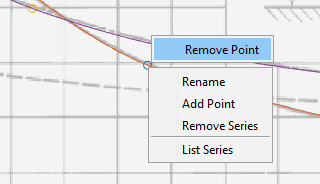
Context menu for removing a digitized point.
To insert a new point, right-click on the curve line (not on an existing point) and select Add Point from the context menu.
Reading Chart Values
Activate the chart reader by selecting Workflow > Read Chart. A vertical red indicator line appears, typically positioned at the center. Click and drag this line to any desired location along the horizontal axis. Values are displayed interactively as you move the indicator, showing the corresponding vertical axis value at each position.
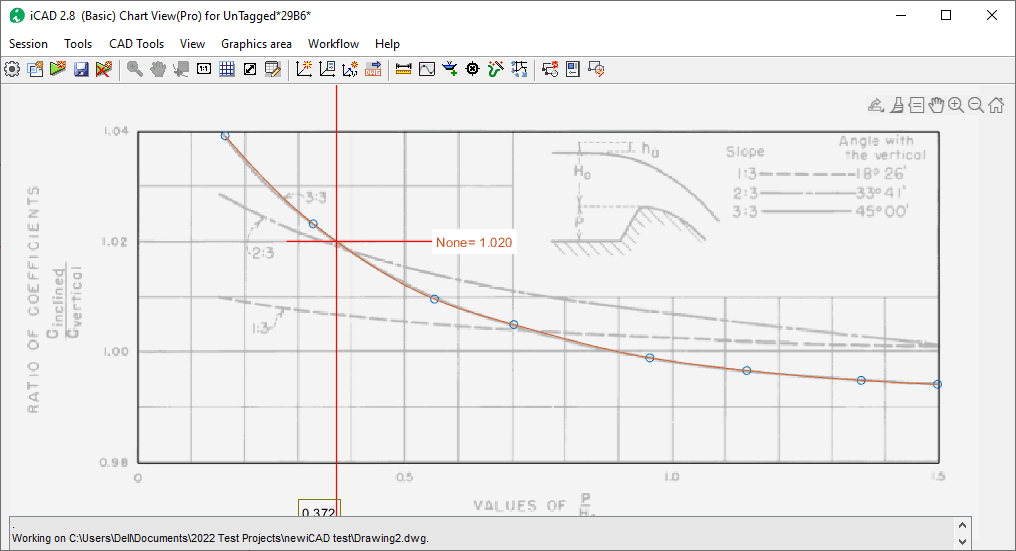
Interactive chart reading interface showing real-time value display.
Press the Esc key to exit the interactive reading mode.
Note: Multiple chart elements can be digitized within a single session and saved for future reference, enabling efficient management of complex multi-curve charts.
Save your work as needed to preserve the digitized chart elements and configuration settings for later use.
Interpolated Reading
A powerful feature of the chart reader is its ability to interpolate values for parameters not explicitly represented in the available charts. This capability is particularly valuable when working with parametric families of curves.
For example, if a chart family includes curves for parameters 1:3, 2:3, and 3:3, but you require values for an intermediate parameter such as 2:2.5, the module can compute these values through interpolation between bounding curves.
Setting Up Interpolation
Begin by digitizing the lower and upper bounding curves that bracket your desired parameter value. Following the example above, you would digitize the curves for 2:3 and 3:3 parameters using the standard digitization workflow described previously.
Assign meaningful names to each digitized chart element by right-clicking on the curve line and selecting Rename from the context menu. In this example, label the curves as "z2" and "z3" respectively to represent their parameter values.
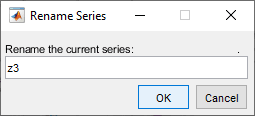
Renaming chart elements for parametric identification.
Verifying Base Curves
Before proceeding with interpolation, verify the accuracy of your digitized curves by reading values at known points using Workflow > Read Chart. Make any necessary edits or adjustments to ensure the digitized curves accurately represent the source chart data.
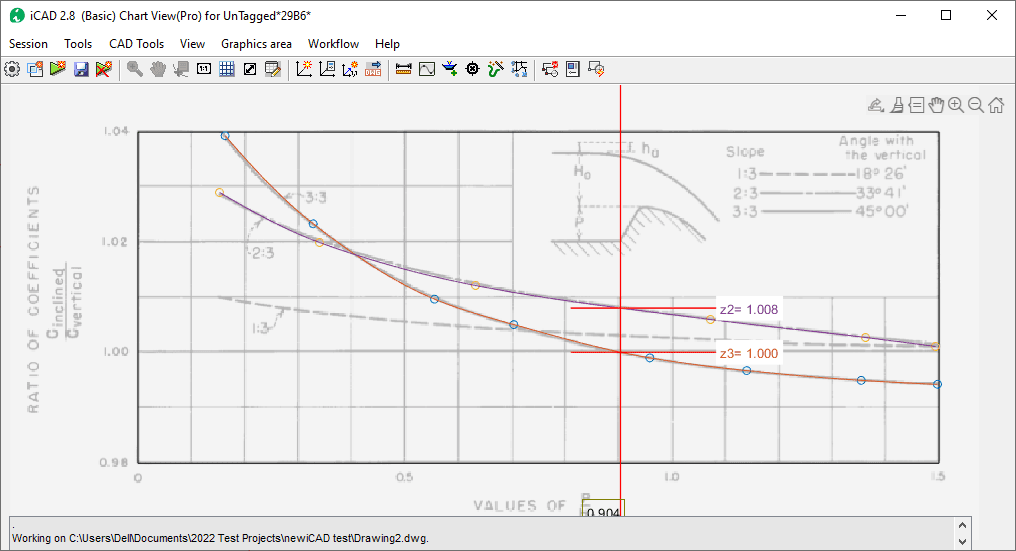
Verification of digitized curves showing values from both bounding curves.
Configuring Interpolation Parameters
Access Workflow > Variable Editor and locate the Z Interpolation Value parameter. Enter the desired intermediate parameter value—in this example, 2.5—representing the parametric position where interpolated values are needed.
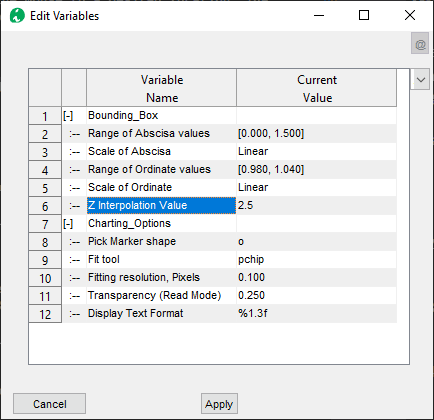
Setting the Z interpolation value for intermediate parameter calculation.
Reading Interpolated Values
Activate the chart reader using Workflow > Read Chart. As you move the indicator along the horizontal axis, the module computes and displays interpolated values corresponding to the specified intermediate parameter, blending between the bounding curves.
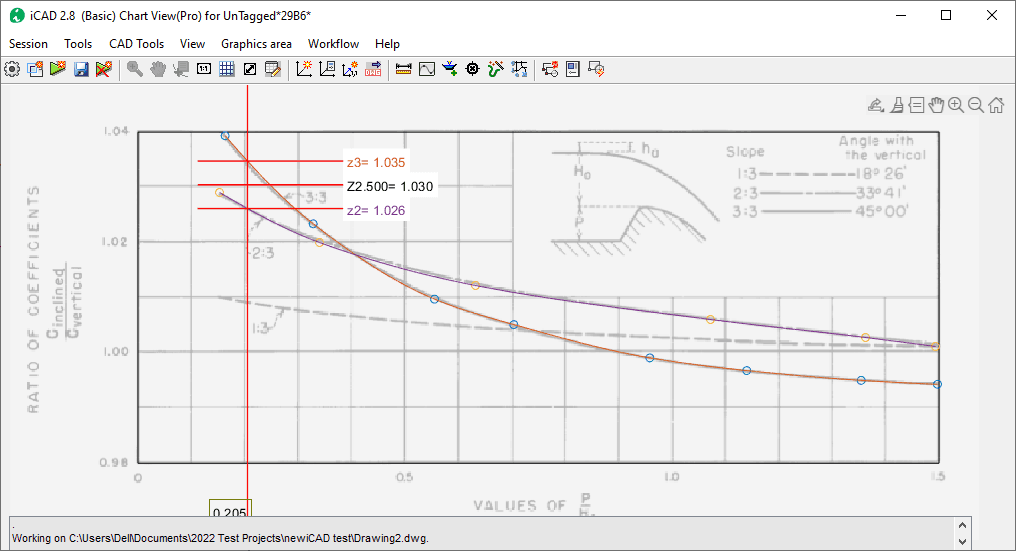
Real-time display of interpolated values for intermediate parameter.
Note: When more than two curve series are present, the module applies the interpolation method specified in the Variable Editor to compute intermediate values, enabling multi-dimensional interpolation scenarios.
Exporting Data
The module provides flexible options for exporting digitized chart data, enabling integration with spreadsheets, analysis tools, and documentation workflows.
Exporting Individual Chart Elements
To export data from a specific chart element, right-click on the desired curve and select List Series from the context menu. This action initiates the data export process for that particular element.
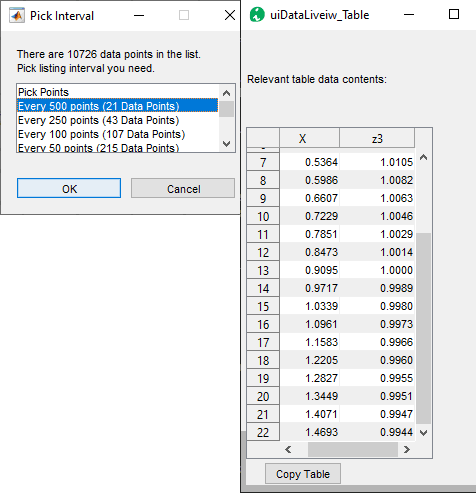
Context menu option for exporting individual chart element data.
A dialog appears prompting you to specify the desired data resolution—the number of points to generate along the curve. Select an appropriate resolution based on your application requirements. The exported data is then displayed in the data table viewer interface, from where it can be copied to the clipboard for use in other applications.
Exporting All Chart Elements
For comprehensive data export of all digitized chart elements within the current session, use the Workflow > List Elements menu command. Similar to individual export, you can specify the desired resolution for the output data. The module compiles data from all chart elements and presents it in an organized format within the data table viewer.
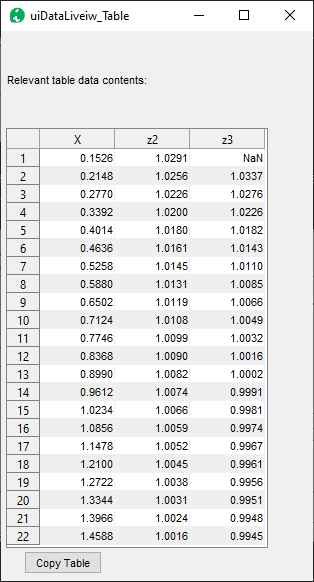
Data table viewer showing exported data from multiple chart elements.
This export functionality streamlines the integration of digitized chart data into downstream analysis and documentation workflows, eliminating the need for manual data transcription and reducing potential errors.