Rating Curve Development for River Sections
This module can be used for two common applications:
- Rating curve development, and
- water surface profile computation
This section is about the development of rating curves. Rating of natural streams can be developed using the product module ChannelRate_WSPRO. The module is built on WSPRO98 algorithm from USGS, providing a convenient solution environment for interactive input and output of solutions. It also solves rating curves using simple application of manning's equation.
Sample rating curve generated by ChannelRate_WSPRO
Typical Workflow
The general workflow for the use of this module is as follows:
- Prepare objects - this includes the cross-section data plotted and referenced
- Define the session for ChannelRating
- Set geometric and hydraulic parametrs
- Solve for the rating curve, and iterate as needed
- Save the work, also for use in other modules (e.g., Diversion Weir Design)
Each of these are further elaborated below.
Preparing Objects
For this module, a one only needs the cross-section of the river stream whose rating curve is required. It must be prepared in AutoCAD.
This can be created in one of many ways. For instance:
- a profile taken from a topographic data. Alignment Profile module can be used to extract profiles easily.
- A surveyor's profile data plotted on AutoCAD
- A drawn cross-section (e.g. digitized from an existing graph plot. DigiChart can be used to interactively and accurately scan geometric construcitons from images.)
Note: The maximum allowable number of vertices for the cross-section is 200 points. Any cross-section in excess of this will not be processed.

A cross-section drawing in AutoCAD ready for use by the module.
In all cases, the object must be refernced to a pair of axis created by iCAD software product. It is not mandatory, but helps, to tag the object with an appropriate name. This can be done from the AutoCAD add-on tools.
:bulb: Tip: If scaling information is not available, the module will not proceed. Use the axis creation and editing tools with in iCAD to reference an existing plot of a cross-section,
Note: Different approaches are used to solve rating curves when either or both banks are lower than that which can accomodate desired discharges. Read Set More Calculation Parameters below for details.
Once the object is ready, continue to defining the session for the module.
Define the Session
If not already, start iCAD application. This will link it to the existing AutoCAD drawing which contains the cross-section plot object. If you are on an open instance, then clear the iCAD Explorer workspace. Before you continue, make sure to import the cross-section object in to the iCAD workspace, else next steps may not complete succesfully.
- Start the module browser from
Session > Create and Run Sessionor the toolbar option.

Create and run session menu command
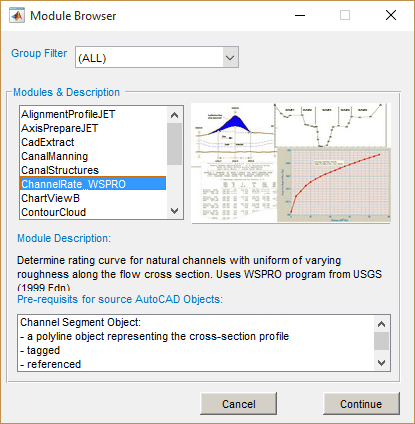
- In the Module Browser dialog, choose the ChannelRate_WSPRO module, and hit
Continue. Provide a unique name for the session.
Provde details and setup the session.
Note: The requirements discussed above, are also shown at the bottom of the dialog, under Pre requisites for Source AutoCAD Objects.
- The New Session dialog opens. Here, click on the Channel Segment space holder. AutoCAD will be in select mode and waiting for input. Choose the ready profile object.
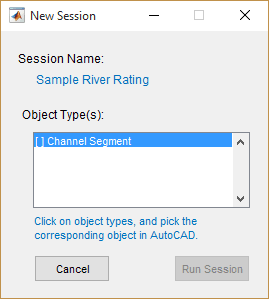
Associate the cross-section drawing with the session
If the selction is made succesfully, the spaceholder is marked. Hit the Run Session button.
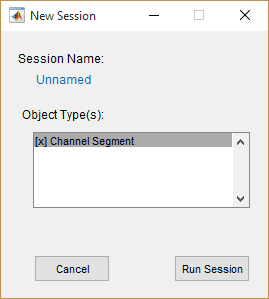
Apply assignment, and run session
Note: The object will be marked [x] when successfully associated to the the AutoCAD object. If not, the Run Session button will remain in Active.
The module is now rinning in the main interface, with all the required prerequisite data. The next step is to define the geometric and hydraulic parameters for the stream cross-section profile.
Solve for Rating Curve
Now that all data is provided and the session is setup fully, the rating curve can be deterimined easily. There are different methods and approaches that can be used. The user can control considerations for determining the final result, as it may suite the particular condition of the channel, its properties and application of the results for design.
Define Segments
Segments are parts of the cross-section profile having different hydraulic parameters, namely roughness coeficients. By default, one segment - represneting the entire width of the profile - is assigned at start up.
- To create more segments, Right-click on a location on the cross-seection profile object, and select Add Segment. This will insert a vertical bar at the given location.

Create and Edit segments depending on roughness variations.
You can edit the locaiton of the vertical bar. Right-click on the bar, and choose Move... to interactively drag to a location. Or choose Move to Station... to input a specific station to move to.
Note: Each vertical bar represents the segment of channel section to the left of its location. Notice also the default hydraulic paramereters displayed at the top center for each segment.
- To edit the roughness coeficient for a segment, right-Click on a it and
Edit Segmentmenu option. In the Edit Segment dialog, change the label and roughness values as needed. The changes will be reflected in the main interface.
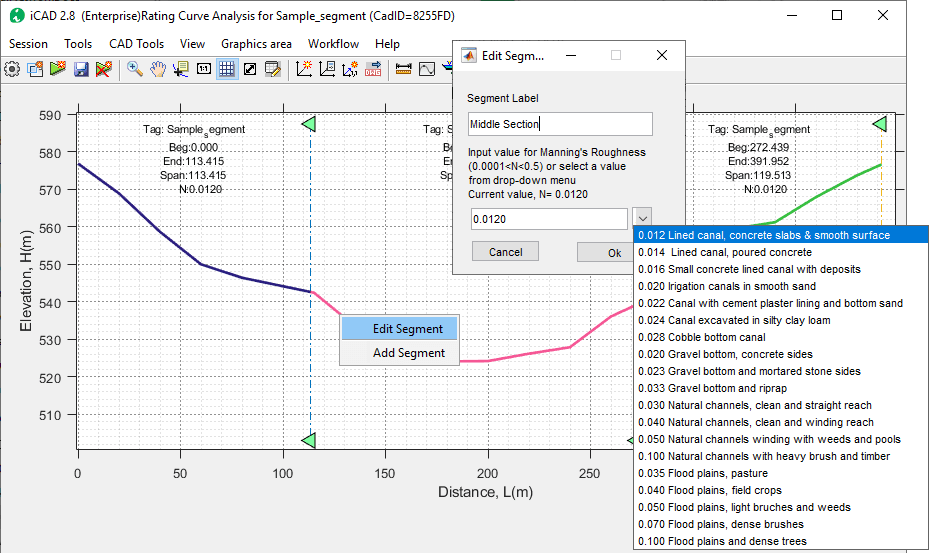
Edit roughness values for the defined segments, manually or choosing from the predeined list.
Note: A maximum of 5 segments are allowed on a given cross-section.
Edit Setting Variables
Before solving for the rating curve, it is recommended to review the calculation parameters which control the solution methods, approach and assumptions. This can be done from the Variable Editor dialog as follows.
-
To set or edit these, go to
Workflow > Edit Variables...orCtrl+Ekey combination. This will display the Variable Editor dialog. The most common ones are:- Discharge range of values for calculation, in m^3^ per second.
- Stream bed slope (m/m).
The calculated range of discharges is dictated by the minimum height of the canal bank on either end, or the maximum of discharge ranges input, which ever is minimum.
The figure below shows the variable editor dialog, listing all the settings available.
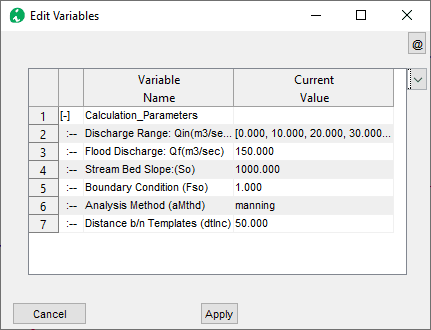
Edit the computation varaiables to suit project needs
The table below summarizes input description for the common variables.
See just below, for Analysis Method and Distance B/n Templates settings.
| Group | Variable Name | Variable Description and remarks |
|---|---|---|
| Calculation Parameters | Discharge Range | An array of discharge values for which a flow stages are to be computed. e.g., [0:25:250] from 0 to 250m³/sec at 25m³/sec interval |
| Flood Discharge: Qf(m3/sec) | Flood magnitudes to show on the rating curve and flow cross section in m³/sec. e.g., 50, 100 draws flood marks for 50 and 100 m³/sec respectively. A maximum of two values can be input. | |
| Stream Bed Slope(So) | The average stream bed slope in m/m. e.g., 0.001 is 1m drop every 1000 meters | |
| Boundary Condition (FSo) | Dictates how water surface elevation is determined at downstream end. Fso ≥ 1.0: uses slope-conveyance computation to determine initial water surface level at downstream end. Fso < 1: assumes critical flow at downstream end, and determines initial water surface level from the same. |
Set More Calculation Parameters
There are three differnet options available to solve for the rating curve, and this can be selected from the Workflow > Edit Variables by clicking on the Analysis Method variable.
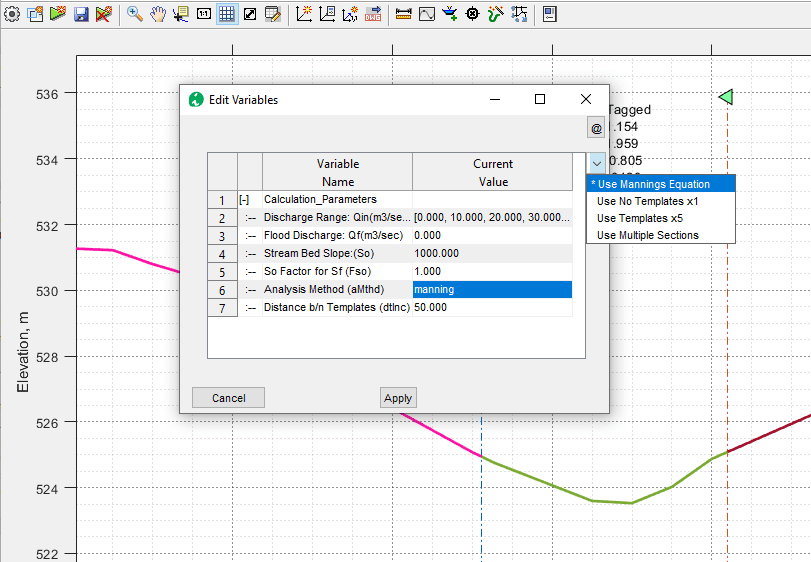
Use different analysis methods available.
-
Mannings Equation: This method applies the mannings equation to the defined cross-section, and uses the slope value from the Stream Bed Slope variable.
Note If segments are created, this method uses the arithmatic average of N (manning's roughness) values assigned for the segments in the cross-section for all discharge amounts.
-
Use Multiple Sections: This method can take input for multiple cross-sections of the river down stream of the desired location. To use this method, each cross-section must be plotted in AutoCAD using iCAD tools, or referenced to requirement per iCAD conventions.
Note: For uniform N values, solutions using Slope-conveyance boundary conditions (with FSo=1.0) are similar to mannings solution.
Note: When using manning solution, the rating curve is calculated up to a discharge level that can be accomodated below the lowest bank height.
Note: When using Multiple Sections method, water surface elevation for discharges higher than that can be acoomodated by the bank data are calculated by assuming a vertical section at either end of the bank.
Once all parameters are set to desired values, hit on Apply button to save them.
Solve and Explore Solutions:
To solve for rating curve, go to Workflow > Solve or use Ctrl+S keyboard short cut. The results are presented on the main iCAD interface, along with a tabular data in the Data Table interface. Notice the updates on the status bar, showing method of analysis employed in solving the rating curve.
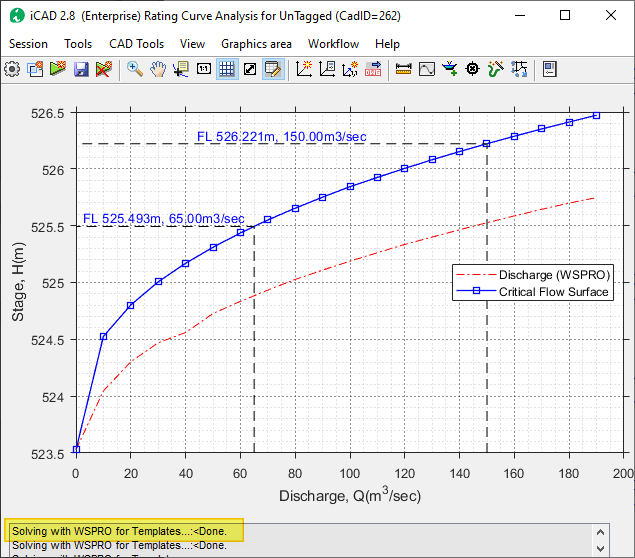
Solution showing calculated rating curve and flood marks.
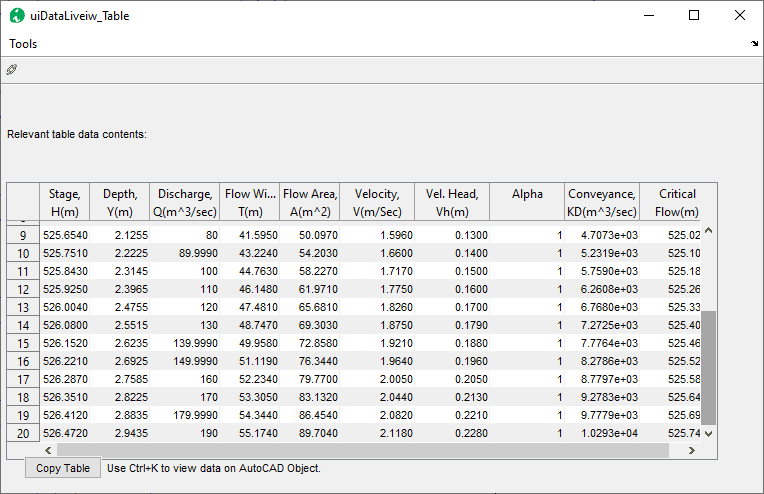
Data Table view interface presenting detailed calculation results.
To explore graphical presentation of other solutions follow below steps,
-
Toggle
Workflow > View Depth Plotsto view stage or depth plots -
Toggle
Workflow > View Discharge CurveorWorkflow > View Velocity plotto different rating plots. -
Toggle the table view from the toolbar, to view or copy tabular results.
Users can edit any aspect of the problem definition or calcualtion paraneters described so far, and solve again to see updated results.
Save Solution
Save the work so it is avilable on subsequent iCAD sessions. To save Go to Session > Save or use the toolbar button.
The data for the session are saved on the cross-section object in AutoCAD. This meanse, on subsquent runs of iCAD, importing this object the iCAD workspace, will also bring the session along with the saved data for quick access.
Saving session and work data in progress.
Note: If save could not complete, make sure the base cross-section object is in the iCAD workspace.
Note: The tabular data of the solution is saved on to the cross-section object in AutoCAD. It can therefore be viewed at any time from Tools > View CSV Data on Object.
Presentation of Results
Use iCAD presentation solutions introduced in earlier in Data Processing, Analysis and Presentaiton chapeters for different ways to view, present and store results in iCAD main interface.
-
Use data cursor tips to annotate the graph. Hold shift to add more data tips.\
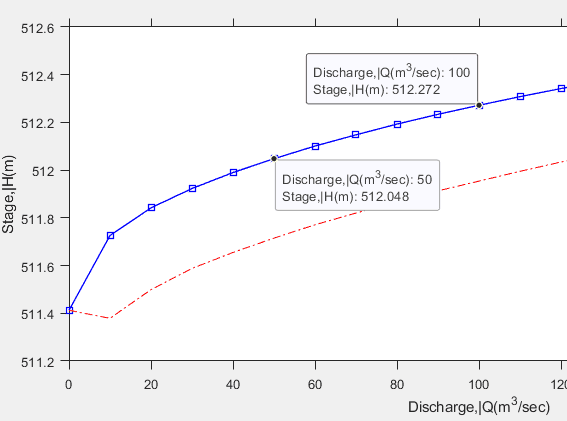
Use data cursor tips to explore results.
-
Use
Tools > Copy Graphics (to File)to save image to a file. -
Copy graphics data and plot to AutoCAD.
-
Copy the table data using
Copybutton at the bottom left to transfer to reports, or spreadsheets as needed.
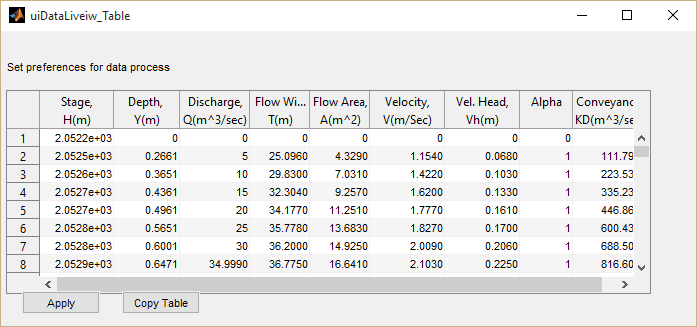
Copy table data for use in other applications.
Any of the results on the main interface can also be drawn to AutoCAD using the Workflow > Draw All to AutoCAD or Workslof > Select Draw to AutoCAD menu commands.
You can read more on this from the guide on Interacting with iCAD environment for more details.
Rating curve for multiple cross-sectoins
The WSPRO/USGS manual, and USBR for Small Dams, recommend to use multiple cross-sections for determining stage discharge relationships. This can be done using this module as follows:
-
Prepare the data for all cross-sections and their location stations, and plot them in AutoCAD. The plots can be separate for each cross-section, or using the same axis for all.
-
Define the session using the base cross-section object, which is the most upstream section located at or near the station where the stage-discharge relation ship is required. This will be known as the Base cross-section.
-
Once in the main environment, edit the segments for the Base cross-section as needed for hydraulic and geometric properties.
Important Note: The number of segments should be equal in all cross-sections, otherwise the solver can not continue.
-
Next, start
Workflow > Manage profilesmenu tool. (This should be refered to as Manage cross-sections. But cross-sections are also profiles, hence the terminology.) Accept the default station for the base section, or edit as needed. Then hitOk.

Managing multiple cross-section profiles.
-
The uiChannelRateInit interface will allow adding more cross-sections to the problem definition. Use
Addto bring the other cross-sections, and specify the stations for each accordingly.
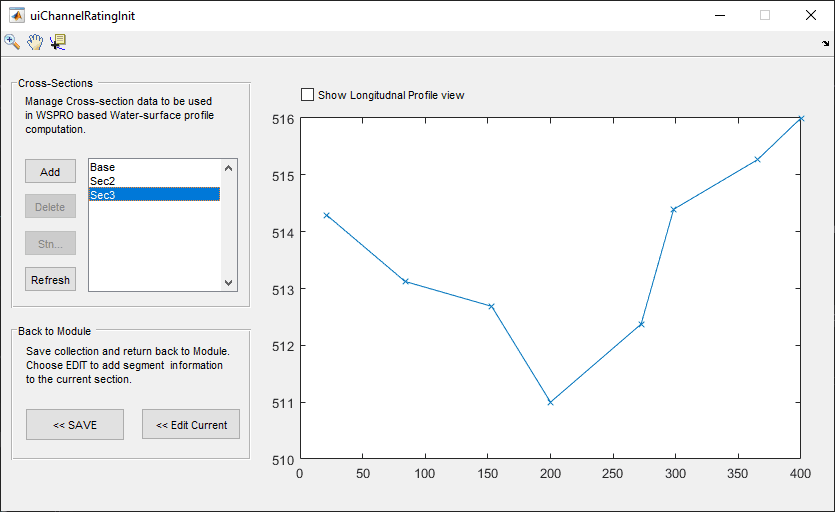
A cross-section drawing in AutoCAD ready for use by the module.
Note: Add each cross-section one by one, sequentially starting from the nearest to the farthest located cross-section, with respect to the base cross-section.
The base cross-section (where the rating curve is needed) must be the furthest from the other sections. In figure below, the rating curve is desired at SEC-E (Stn=200) also known as the base section, and all other sections are located downstream of the base section (0 < stn < 200). Locations are measuered from some reference location (stn=0) somewhere downstream.
Plotted view of water surface profile computation result.
- Next, edit each cross-section for hydraulic and geometric properties similar to the base cross-sectoin. To do this, check the Show Longitudinal Profile check box on the top of the interface. This will display all imported sections in order. Then select a section from the list on the left pane, which will also highlight the corresponding object from the longitudinal view. Then choose
Edit Currentbutton.
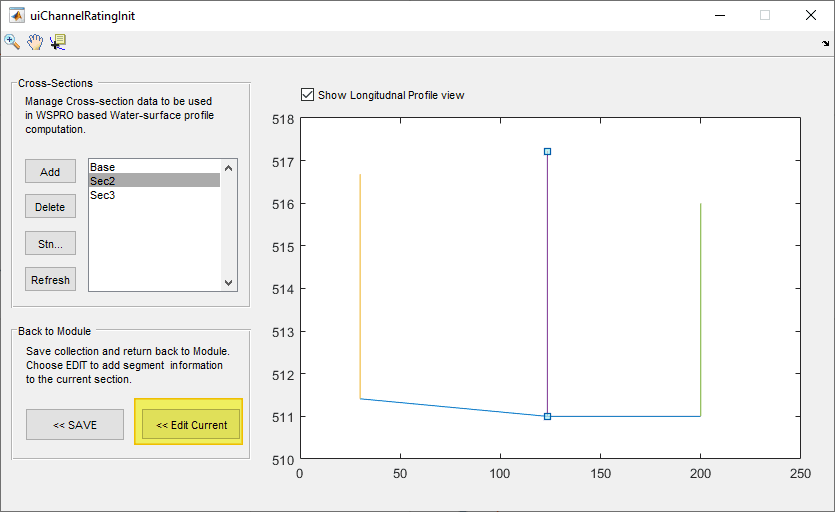
Edit individual cross-sections as needed for composite roughness values.
-
This will close the interface, and pass the current section to the main interface. Use the usual steps to create and edit segments to this section. When done, go to
Workflow > Restore Source Sectionmenu command. Repeat for each section.Tip: The number of segments in each cross-section must be equal to that used for the base cross-section.
-
In the main interface go to
Worlflow > Edit Variables, and set the Analysis method to MultiSections. And hitApply.
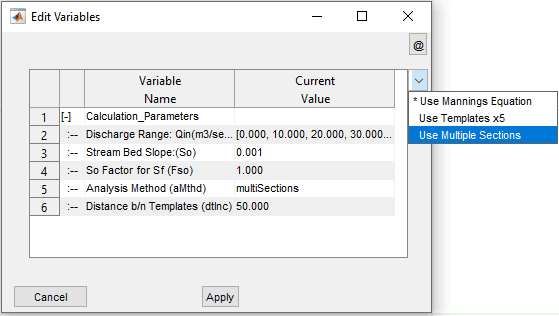
Apply the proper calculation method to consider multiple sectoins.
The set up is completed. Now the problem can be solved. Use Ctrl+s or Workdlow > Solve to do this. The rating curve for the base section is displayed. The computed flow profile for the different sections can be viewed from Workflow > Show Computed Profile.
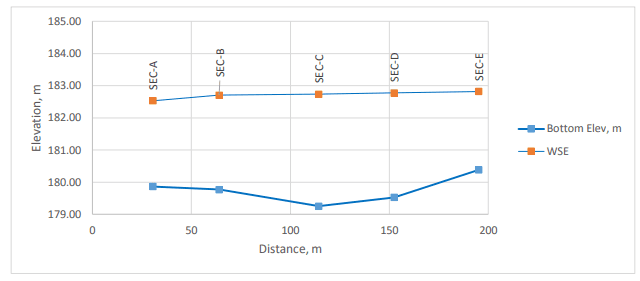
A cross-section drawing in AutoCAD ready for use by the module.
This figure is an edited version of the profile plot for report purposes.