Profile Data Creation and Management
The accurate calculation and presentation of ground surface data is fundamental to the design of irrigation infrastructure. iCAD incorporates a dedicated module specifically designed to manage this critical task, delivering results through an intuitive and user-friendly interface. This module, along with its extended applications in products like CanalNETWORK, leverages advanced computational algorithms to generate precise surface model representations and determine elevation values at specific query points.
This chapter provides comprehensive guidance on practical applications for profile data creation, surface modeling, and query operations. The following sections detail the complete process for extracting profile data within the iCAD environment.
Prerequisites: Topographic Data Setup
Before extracting profile data, you must ensure that scattered topographic data (typically in CSV format) is properly associated with your drawing file. This data can be provided either through the workspace or as part of the module requirements. The process of storing point cloud data and utilizing it for surface modeling is thoroughly covered in the Topography and Surface Modeling chapter.
Prerequisites: The following content assumes you have completed the topographic data setup process described in the aforementioned chapter.
Understanding Profile Extraction Output
Upon successful completion of a profile extraction process, you will have access to the following comprehensive outputs and analysis tools:
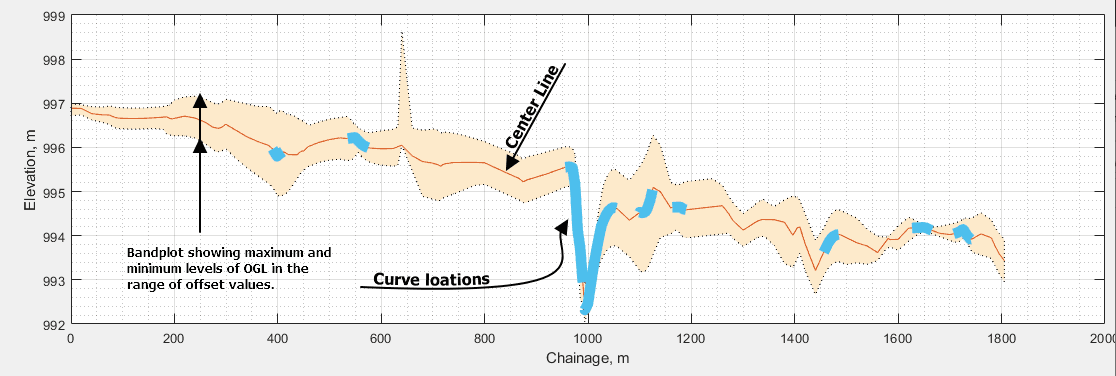
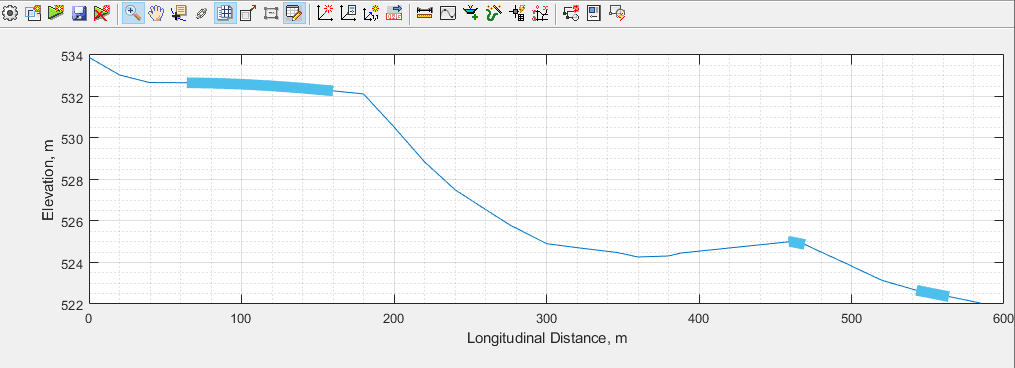
A typical profile extraction output displaying various data analysis options.
A complete profile dataset includes the following components:
- Centerline Profile Data: Elevation values along the alignment route at specified intervals
- Offset Profile Data: Elevation data for points to the left and right of the centerline (when offset distances are defined)
- Transverse Profile Visualization: Band plot showing cross-sectional variations along the entire route
- Curve Analysis: Detailed information about curve locations and parameters (when curves are detected)
Note: For comprehensive details on curve handling requirements and prerequisites, refer to the dedicated section below.
Creating Profile Data for a Single Alignment Route
To create profile data for a single alignment route, ensure that your iCAD session is properly connected to the current AutoCAD drawing, with both the host object and desired alignment route prepared. Follow these detailed steps:
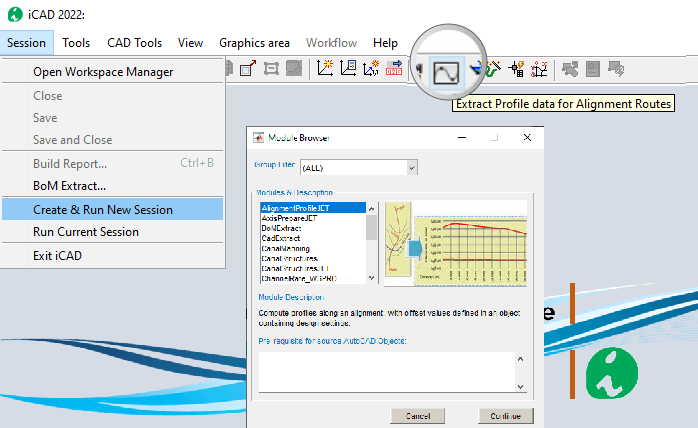
Step 1: Launch the Profile Extraction Module
Start the AlignmentProfileJET module either by clicking the toolbar button or navigating to Session > Create and Run New Session...
Step 2: Configure Input Parameters
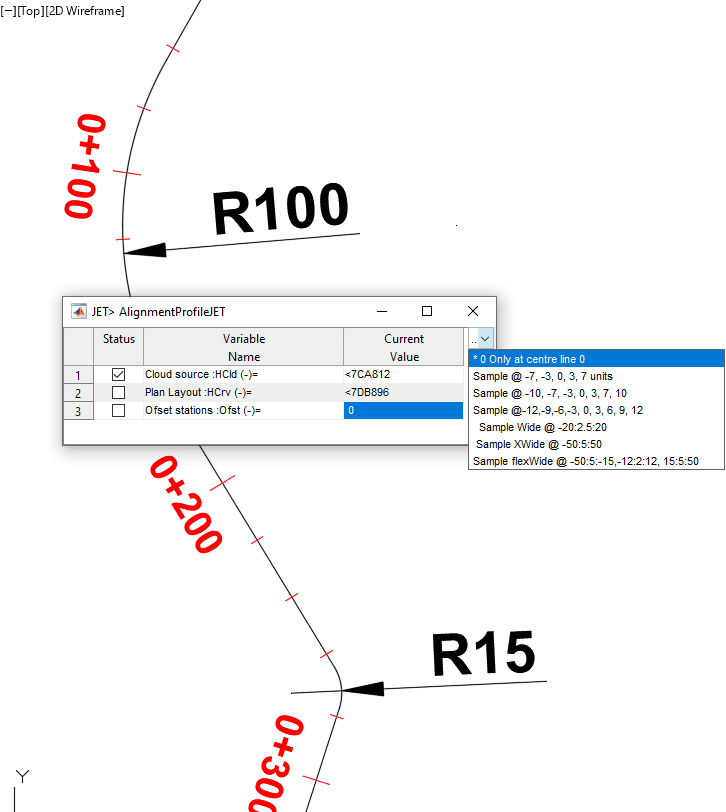
The module will display an input dialog box. Click on each value cell and select the corresponding objects in AutoCAD.
Step 3: Set Offset Parameters
The final variable allows you to specify stations for lateral offset points to collect strip profile data. You can choose from predefined options or input custom offset values. If offset data is not required, leave this at the default value of 0, which will extract profile data along the centerline only.
Step 4: Configure Advanced Parameters
The subsequent input dialog enables you to specify additional parameters for the profile extraction task.
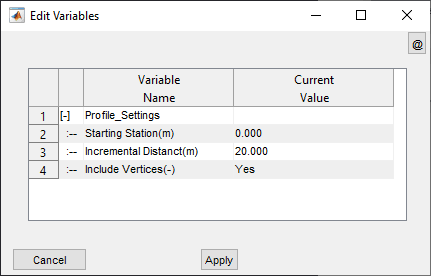
Starting Station: The desired starting station for the profile data. The default value is 0, and it is recommended to maintain this setting unless specific project requirements necessitate modification.
Incremental Distance (m): The interval for profile data extraction. The default setting is 20m, with a minimum value of 0.5 meters available.
⚠️ Important Warning: Incremental lengths less than 5 meters will not extract curve parameters. These small values are specifically intended for diversion weir or dam axis alignments (typically up to a few hundred meters in length). Using small incremental distances for long alignments, such as canal routes, is strongly discouraged and may cause the profile extraction process to terminate prematurely.
Include Vertices: This option controls whether profile data is included at vertex locations along the alignment route. In recent versions, vertex locations are automatically included, making this variable redundant. It should remain at the default value of YES unless you specifically need to suppress curve extraction (set to NO).
Step 5: Review Extraction Results
Upon completion, the iCAD graphic interface will display the results of the extraction process.
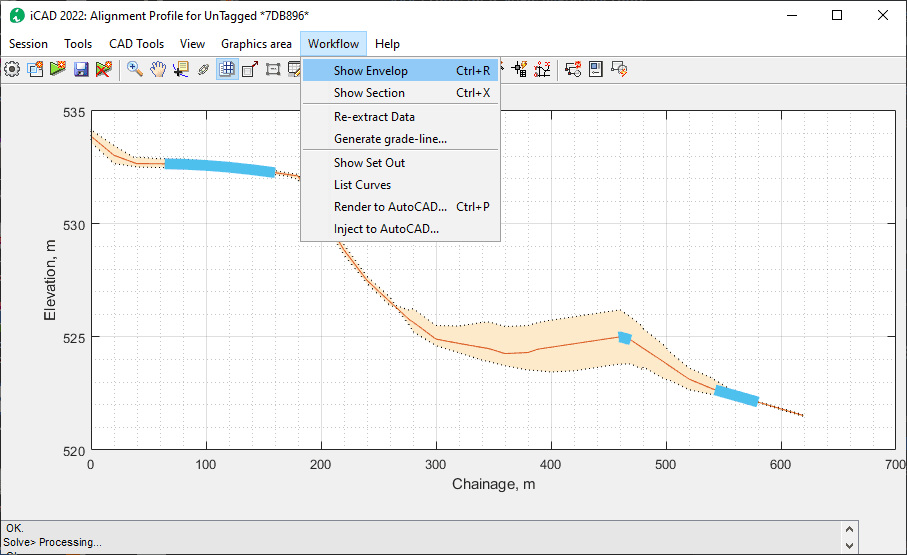
Navigation Controls:
-
Refresh Display: Press
Ctrl+Rto refresh or view the graphic data -
Toggle Table View: Use the table view toggle to show or hide the data listing
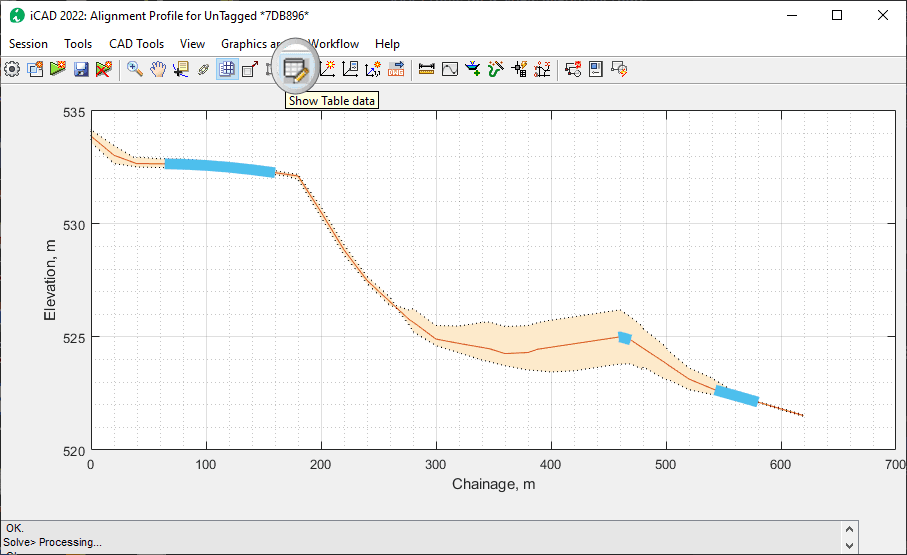
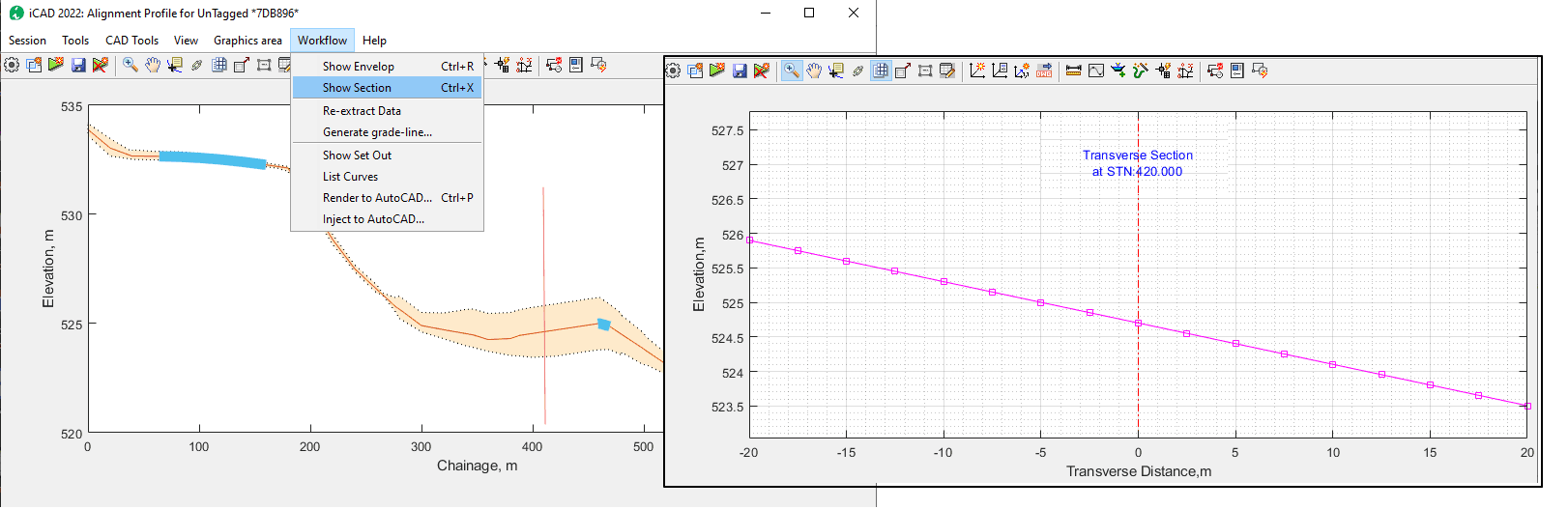
Step 6: Analyze Cross-Sections
Use Workflow > Show Section to explore transverse profiles along the route length. This will display the cross-section at the nearest data point.
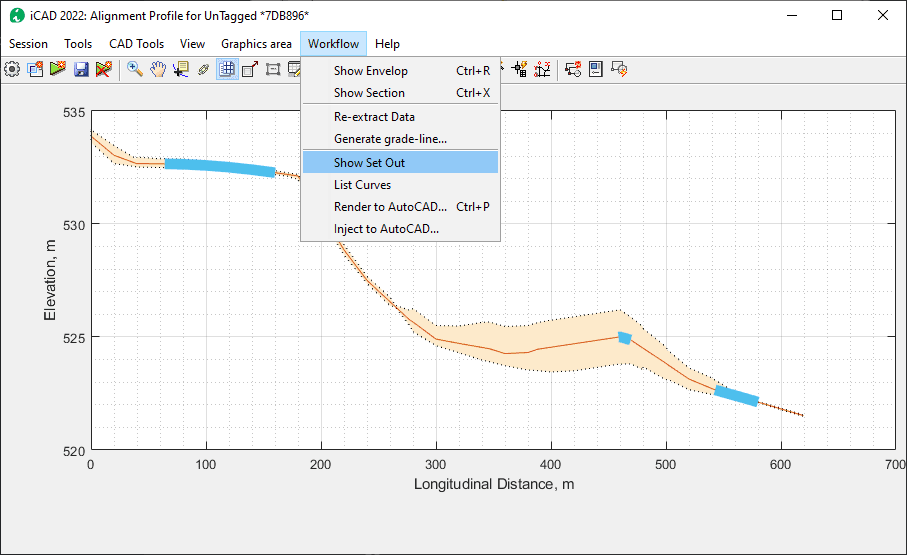
Step 7: View Setout Information
To view setout information, use Workflow > Show Set Out
Step 8: Analyze Curve Data
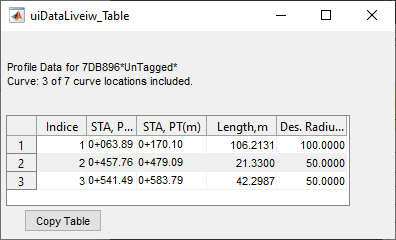
To view the complete list of curves in the dataset, use Workflow > List Curves and monitor or toggle the data table viewer. The curve data table includes index numbers, station locations of PC and PT points, PI Easting and Northing coordinates, as well as curve length and radius measurements.
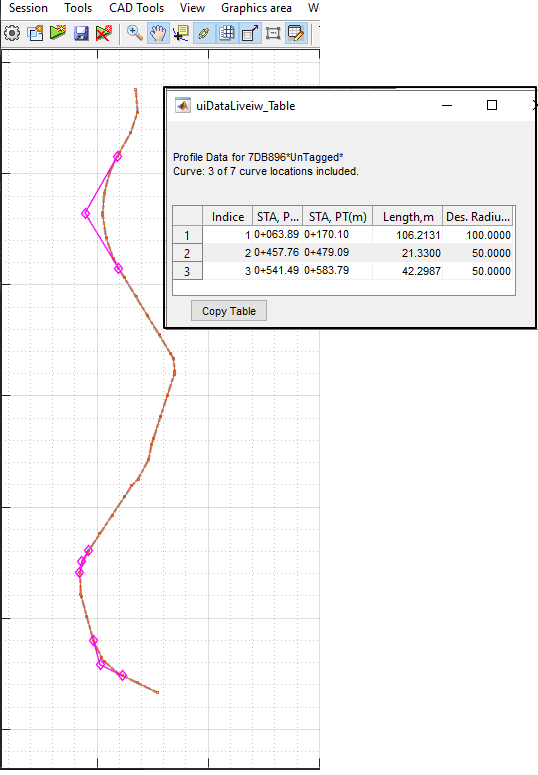
The curve listing contains sequential indices, PI station, PT station, Length, Design Radius, and additional geometric parameters.
Step 9: Save Your Work
Before closing the session, save the data using the Save button on the toolbar or the Session > Save menu command. If you receive the alert message shown below, ensure that the route object is added to the current workspace collection, similar to the surface data host object setup.
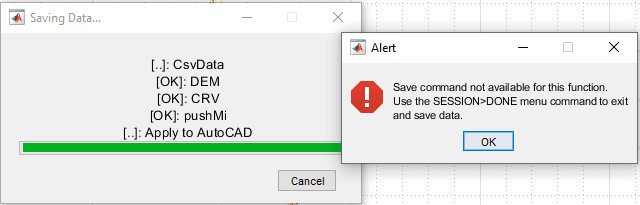
The profile data created and saved through this process becomes available for use in other iCAD and CanalNETWORK functions.
Profile Data for Multiple Objects
[... more content to be added soon...]
Elevation Data Inquiry
There are situations where you need to determine the elevation value at a specific easting and northing coordinate. iCAD provides a dedicated tool for this purpose, which is also available in CanalNETWORK.
Step 1: Launch the Inquiry Tool
Access the tool through Cad Tools > Inquire 3D... or launch it directly from the toolbar.
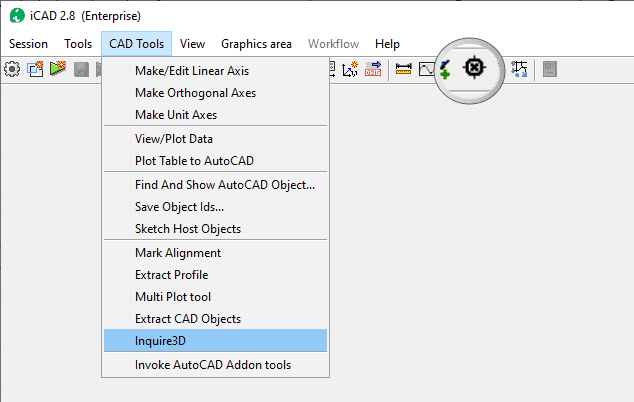
Step 2: Select Surface Data Source
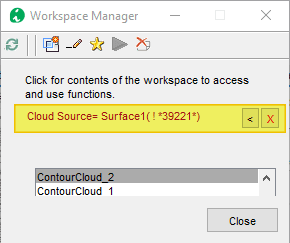
Choose a surface data source from your workspace. If surface data is not currently loaded in the workspace (as shown below), the system will prompt you to select a cloud data object directly from AutoCAD. Upon selection, this data will become available for surface modeling and interpolation operations.
Step 3: Configure Reference System
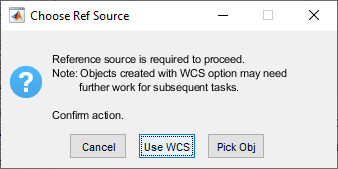
If the selected surface data source object in AutoCAD is not referenced to any coordinate axes, the module will present a dialog allowing you to either select a reference system in AutoCAD or use AutoCAD's World Coordinate System (WCS).
Step 4: Select Query Locations
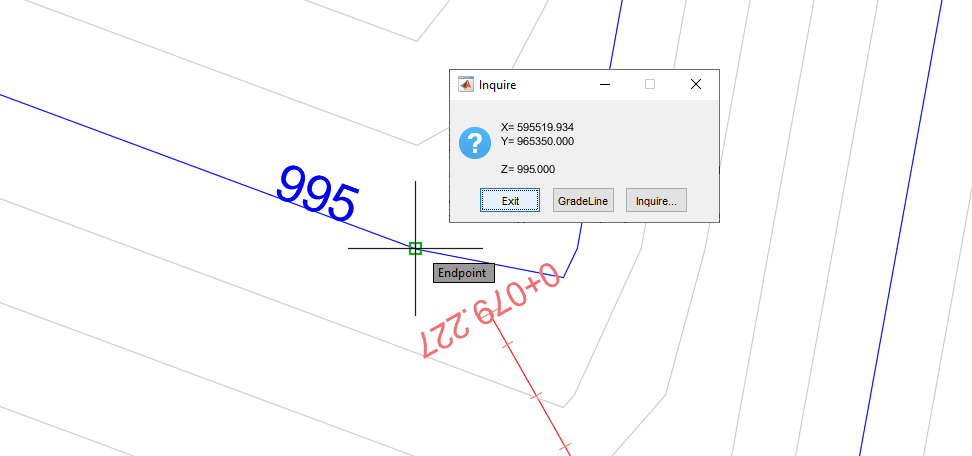
After configuring the appropriate reference source, AutoCAD will enter pick mode, waiting for you to select locations. As soon as you pick a point, elevations are automatically calculated and displayed in a dialog box.
Step 5: Continue or Exit
To perform additional inquiries, select the Inquire button. To exit the tool, choose Exit.
Gradient Search Tool
This advanced tool utilizes a given starting point and initial search direction to determine an alignment that satisfies a desired grade. Common applications include determining alignments for supply or drainage canal routes that must meet specific design gradients.
Example Application: We will demonstrate this tool by determining a canal alignment with a 1/1000 gradient slope from a weir axis.
Step 1: Initialize the Tool
Use the Cad Tools > Inquire 3D command (described above) to start this tool. Follow all steps until Step 2.
Step 2: Select Starting Point
When prompted in AutoCAD, pick the starting point for the gradient search. In this example, we select the outlet point after the abutment.
Step 3: Configure Gradient Search Parameters
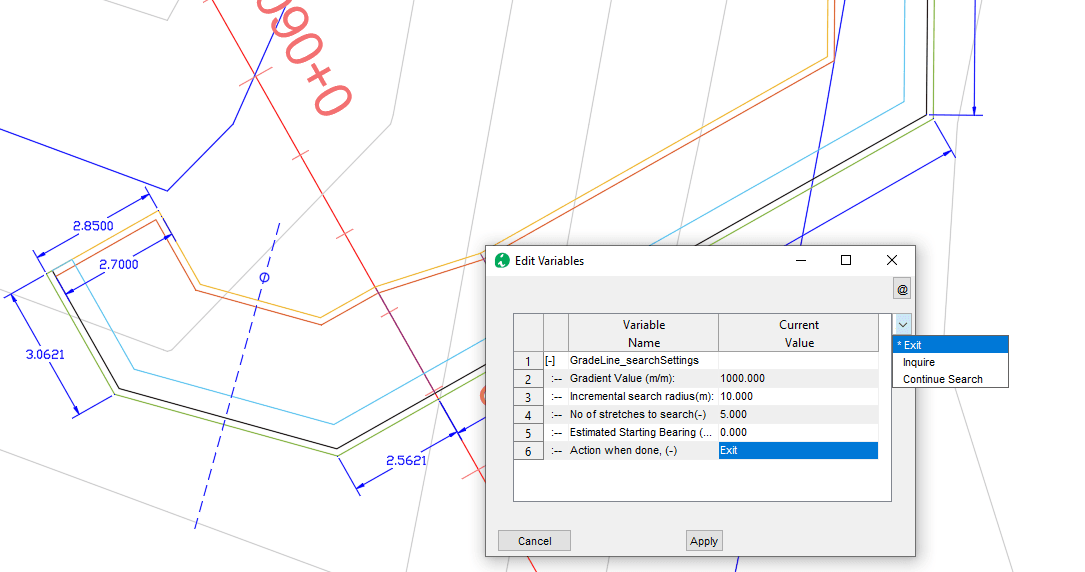
When the Inquire dialog appears, choose the Gradient Search button. The Variable Editor will display key parameters for the search operation.
Parameter Configuration:
-
Gradient Value (m/m): The desired gradient for the alignment as measured on the surface. Positive values indicate a downgrade search, while negative values indicate an upgrade search. For this example, we use 1000 for a downgrade search of 1/1000 value.
-
Incremental Search Radius (m): The radius of each search leg, determining the length of each segment in the resulting alignment.
-
Number of Stations to Search: The number of legs to search before pausing for the next action.
-
Estimated Starting Bearing (Deg East): The starting bearing with respect to east for the search. Keep at 0 (default) to specify interactively in AutoCAD.
-
Action When Done: The desired action when the specified number of legs have been searched. Options include Exit, perform more Inquiry, or Continue the search. For long alignment searches, the Continue Search option is recommended.
Step 4: Execute the Search
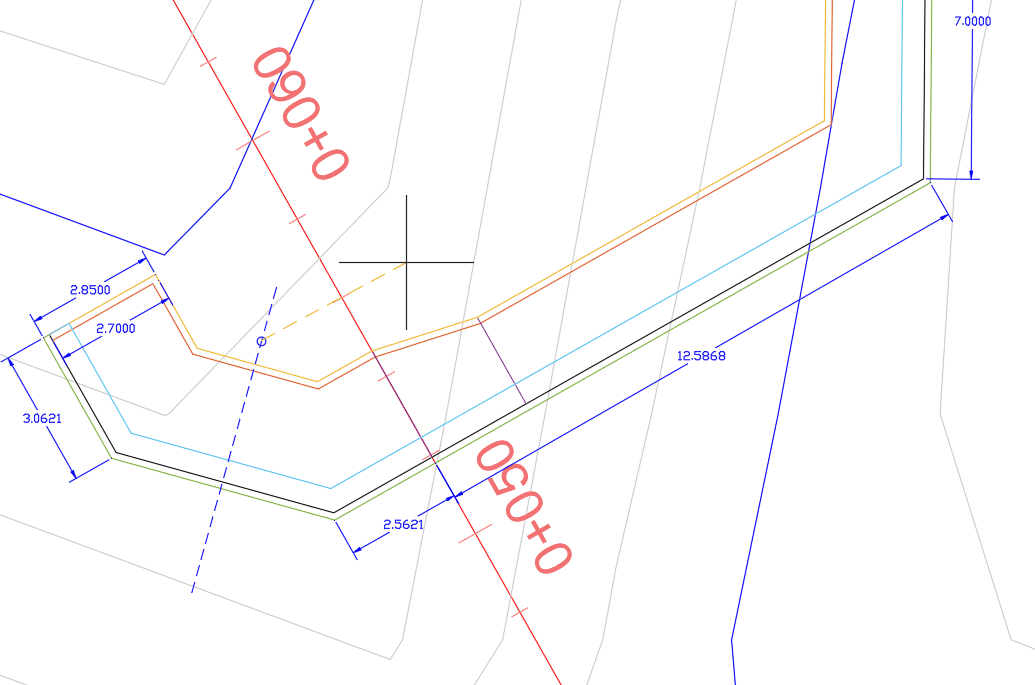
When configuration is complete, click the Apply button. AutoCAD will prompt you to select a bearing for the initial search direction. Pick a point to define the direction.
Step 5: Review Results
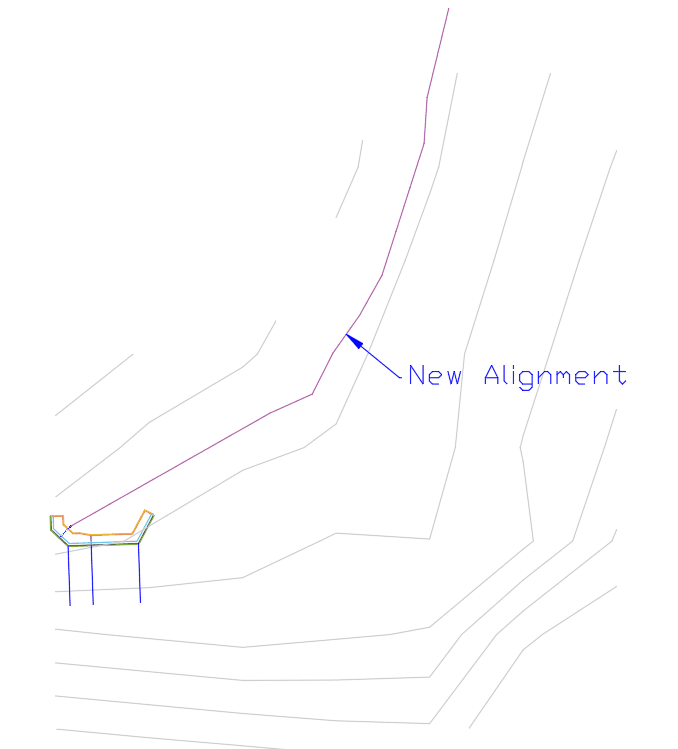
The resulting alignment will be created, displaying the gradient-based route as shown below.
Surface Interpolation Methodology
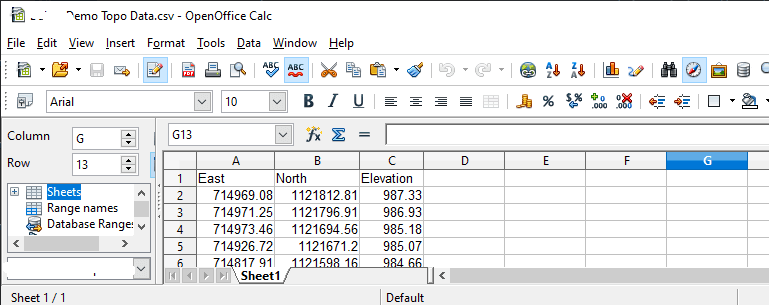
Surface fitting and interpolation in iCAD and CanalNETWORK products involves transforming scattered topographic data (x, y, z coordinates) into a continuous surface model represented by the mathematical function z = F(x,y). This surface model enables the calculation of elevation values at any arbitrary x, y location, making it possible to work with data from surveying operations or other sources in standard x, y, z format.
Mathematical Foundation
iCAD employs a sophisticated scattered interpolation algorithm based on MATLAB's implementation. This algorithm utilizes Delaunay Triangulation to process the dataset, creating a surface representation composed of interconnected triangular elements.
Key Characteristics of Delaunay Triangulation:
-
Maximizes the smallest angle occurring in any triangle across all possible triangulations of the point set
-
Ensures that no other triangulation will have smaller angles at vertices
-
Provides optimal geometric properties for surface representation
Interpolation Principles:
The methodology operates on two fundamental assumptions:
- Planar Approximation: Each triangle assumes a perfect plane surface
- Linear Interpolation: Elevation values at any point within or on the edge of each triangle are calculated using linear interpolation between the triangle vertices
Query Operations on Topographic Data
Once the surface interpolant is established, elevation values at query points (x, y coordinates) are determined using the following mathematical relationship:
where
represents the surface interpolant function.
Application Functions
The surface data extraction algorithm in iCAD and CanalNETWORK software products is implemented in the following key functions:
-
Point Query: This interactive function queries elevation data from x,y coordinates obtained through user selection in the AutoCAD environment. The function reads the x, y (or E, N) data from user input and displays the elevation value calculated using z = F(x,y)
-
Profile Extraction: The primary input for profile extraction is an alignment path object defined in the AutoCAD environment. This object provides x, y coordinates at fixed intervals along the path. The same interpolation function is applied to this coordinate dataset to return corresponding elevation values.
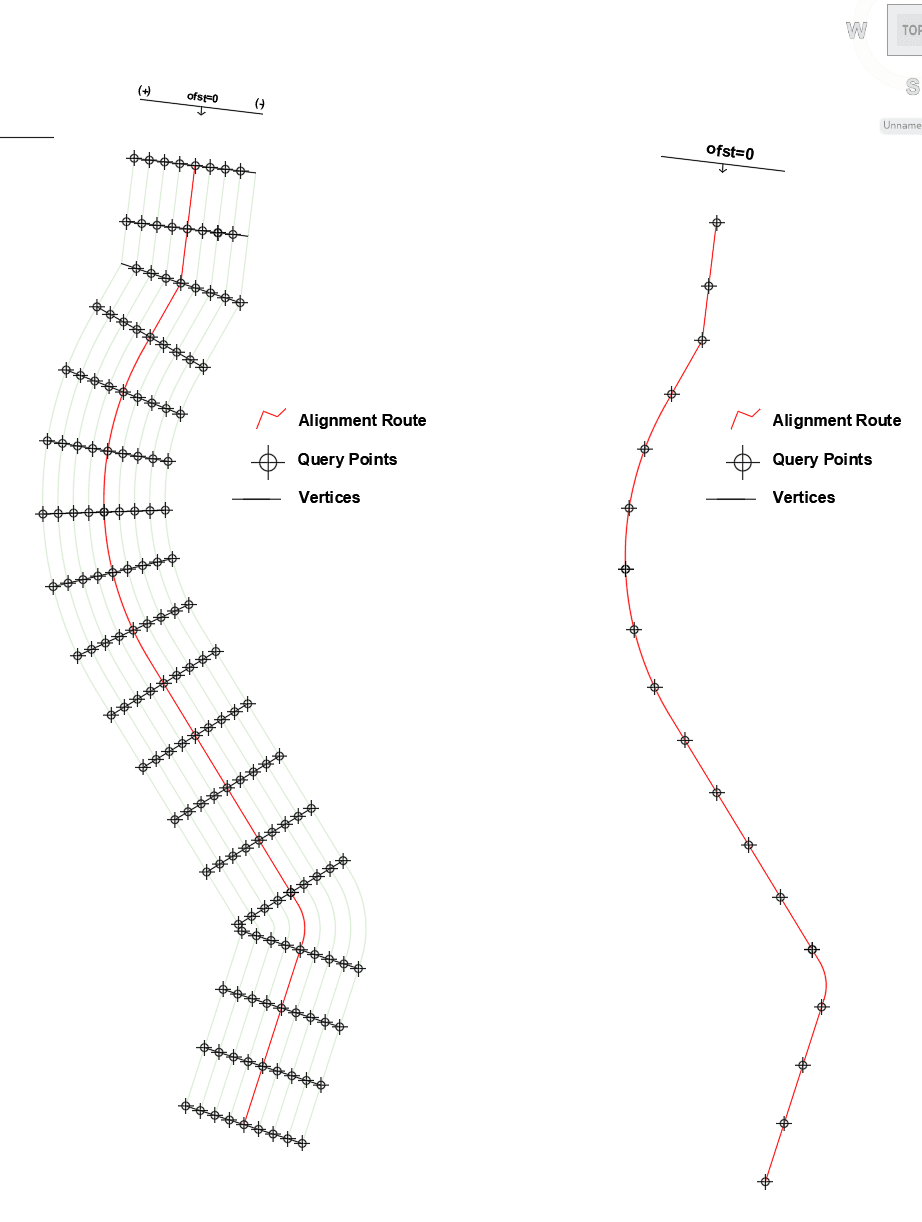
Figure: Alignment route, vertices and query points showing for an alignment route with and without offset query points.
Strip Profile Data Extraction: When extracting strip elevation data for an alignment object, normal lines are generated at fixed intervals. In addition to x,y coordinates along the centerline (on the alignment route), additional x,y coordinates are created at offset locations specified by the user along these normal lines. The offset locations are applied on both sides of the alignment. The resulting x,y dataset forms a strip area along the alignment route, with elevation data calculated using z = f(x,y).
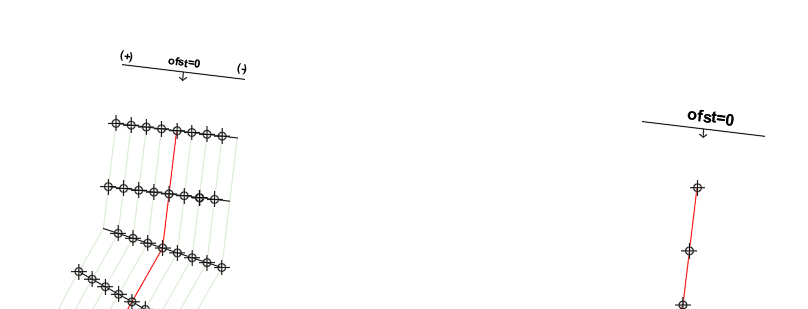
Schematic showing Alignment route, and offset query points consideration. Offsets are read from Left to Right, facing in the direction of progress of the alignment route.
Important Notes:
- The intervals for extracting profile data are user-specified
- The algorithm automatically includes vertex points along the alignment route object, though users have the option to exclude these points during extraction
- Profile Reload Tools: Engineers often need to modify alignment routes to meet specific design requirements. This is handled within the AutoCAD environment. Both iCAD and CanalNETWORK products provide a reload function that allows refreshing profile data for alignment objects with modified vertices. Reload functions essentially repeat the profile extraction process using the original settings.
Extrapolation Capabilities
The surface interpolant function implementation in both iCAD and CanalNETWORK products includes extrapolation capabilities, enabling the determination of elevation data outside the area covered by the input x,y dataset. This means the system can estimate elevation values for points beyond the boundary area defined by the original data set.
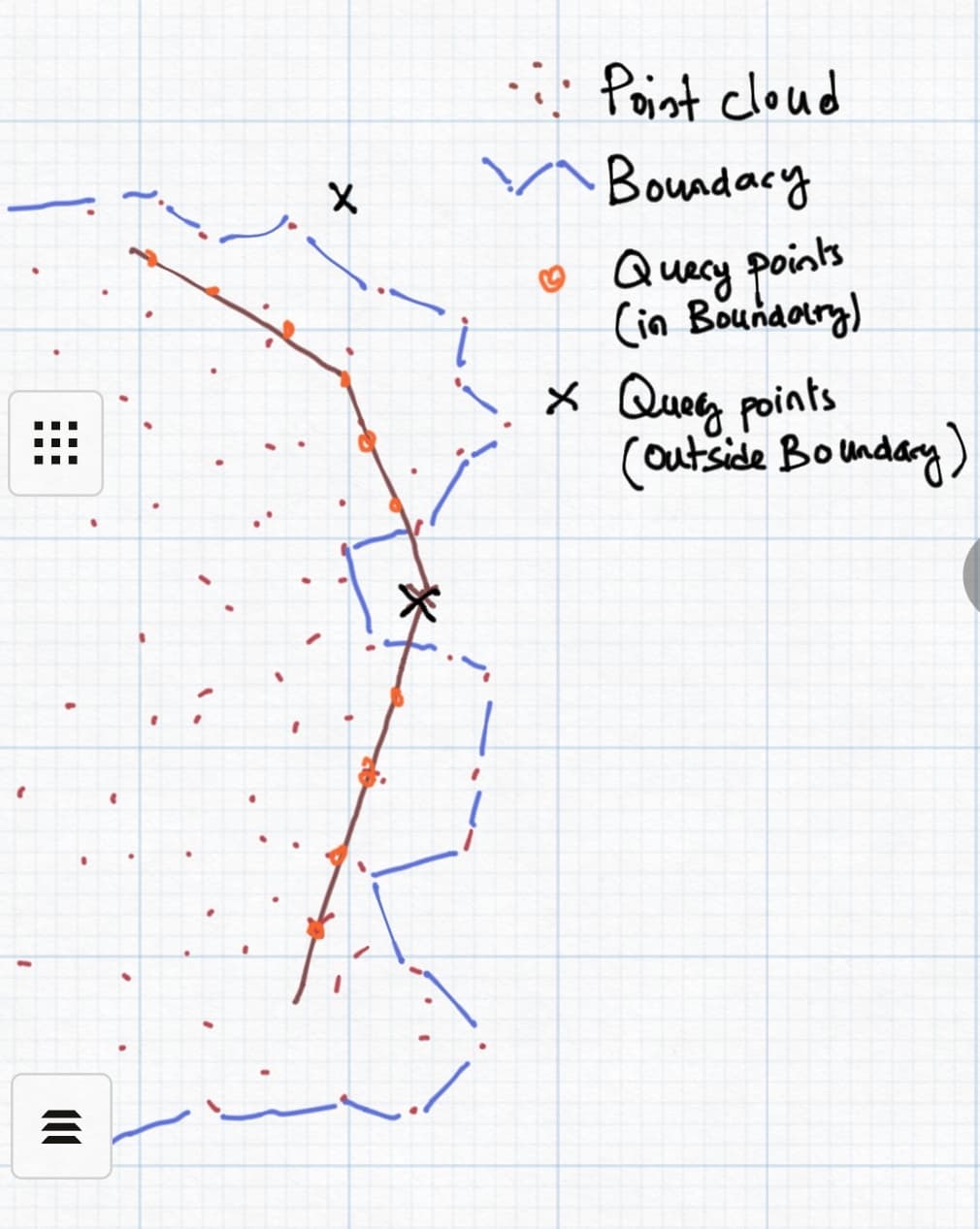
Schematic showing point dataset, boundary area defined by the dataset, and query points for extrapolation.
Important Limitations:
- Linear Extrapolation: Returned values are derived from linear extrapolation methods
- Decreasing Reliability: The reliability of returned values decreases significantly as query points move further from the boundary area of the original dataset
- Complementary Feature: Extrapolation should be considered only as a supplementary feature to obtain rough estimates of terrain variation beyond the boundary area
⚠️ Critical Warning: There is no guarantee that designs based on extrapolated data will meet acceptable quality and accuracy standards. Use extrapolated data with extreme caution and verify results through additional surveying when possible.
Curve Handling During Profile Extraction
When curves are present in the AutoCAD alignment object, they will be processed during profile data extraction. The following requirements must be met for successful curve data extraction:
Geometric Requirements:
-
Terminal Segments: The beginning and ending segments of the alignment route must be straight segments with lengths at least equal to the incremental distance for profile extraction (default: 20 meters)
-
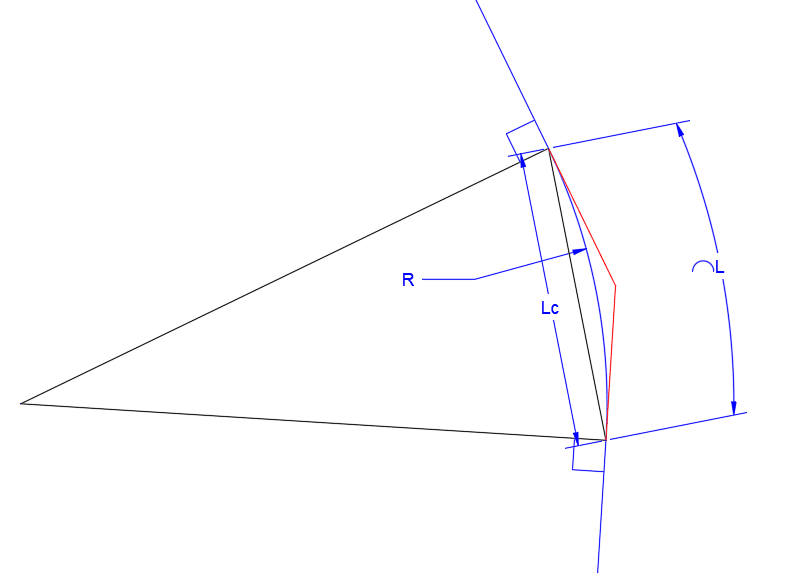
Minimum Dimensions: Curve radius (R), curve length (L), and chord length (Lc) must all be greater than or equal to 20 meters
-
Tangent Alignment: The backward tangent and forward tangent lines at the curve beginning and ending points must align with the preceding and following segments within acceptable error tolerances
-
Incremental Distance: The incremental distance specified for profile extraction must be ≥ 5.0 meters
Design Rationale: These limitations are established to ensure design practicality, as curves smaller than these specifications are not recommended in engineering practice. If any of these conditions are not met, no curve data will be extracted.
Successfully Extracted Curve Data
Route curvatures meeting all requirements are successfully extracted as curves. The resulting dataset contains comprehensive curve information including:
- Point of Curvature (PC): Curve beginning point
- Point of Tangency (PT): Curve ending point
- Point of Intersection (PI): Tangent intersection point
- Point of Mid-curve (PM): Curve median point
- Curve Center (CC): Geometric center of the curve
The schematic below illustrates the detailed curve information extracted during the process.

Example Route Analysis
The following sample route geometry demonstrates curve validation during profile extraction:
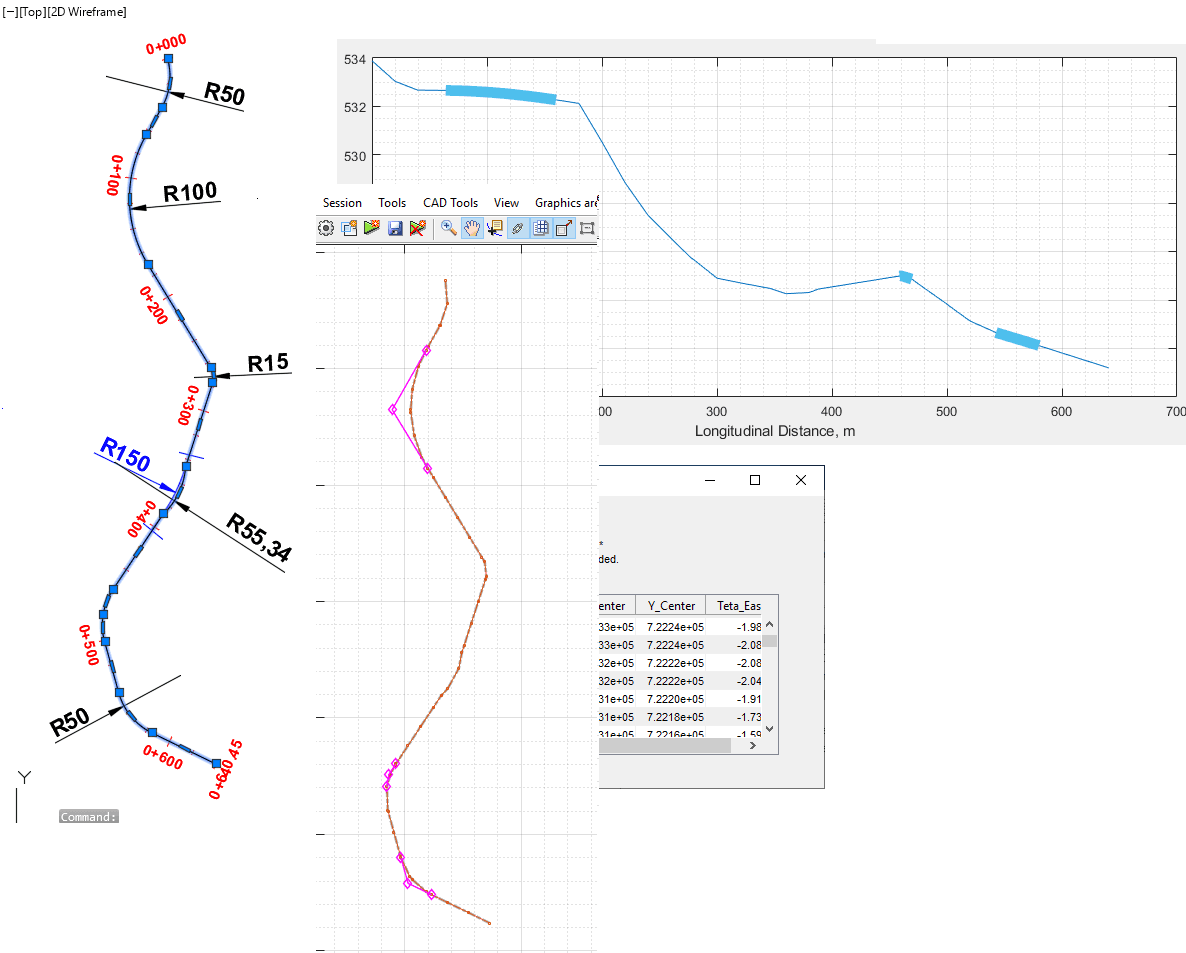
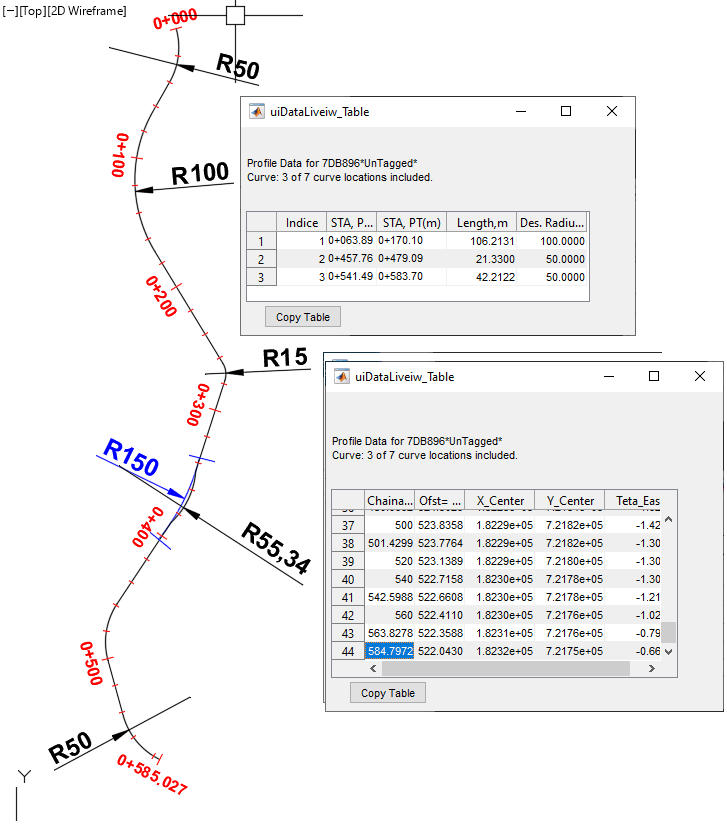
Analysis Results: This route contains seven curves, including a compound curve near station 500. The extraction report indicates that only 3 out of 7 curves meet the criteria for successful extraction.
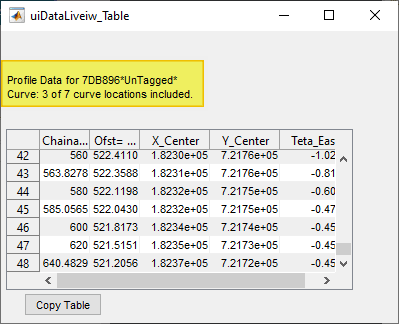
Curve Rejection Analysis:
- Curve 1: Discarded because curves at the beginning and end do not meet tangency requirements
- Curve 3: Discarded because its radius of 15 units is below the minimum threshold of 20m
- Curve 4: Discarded because the calculated radius of 55.34m does not match the tangency requirement of 150m
- Curves 5 and 6: Compound curves discarded because tangency requirements are not met for either curve
Important Note: Despite curve rejections, profile data is still collected at the specified incremental stations throughout the entire route length.
⚠️ Critical Design Consideration: For the same route, removing the last vertex will cause a curve to be positioned at the final segment. This creates two significant issues: (a) reduced alignment route length, and (b) miscalculated Point of Tangency. To prevent these problems, always ensure there is a straight segment at the end of every alignment route.
Known Issue: Transverse Profile Data Flipping
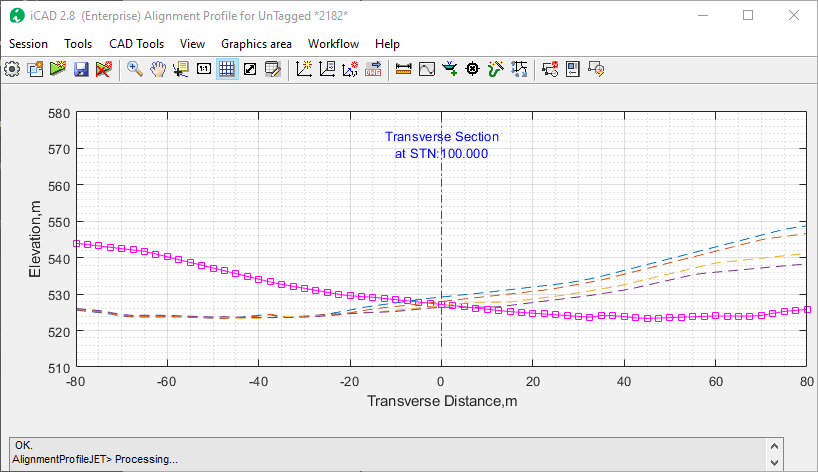
Occasionally, transverse profile data may be flipped during extraction. This issue typically occurs when horizontal or near-horizontal segments (with small bearing from Easting) are followed by segments with different bearing values. If you encounter this issue, follow these correction steps:
Step 1: Access Cross-Section View
Start the cross-section view using Workflow > Cross-section View or press Ctrl+X. Click near the desired station to display the transverse profile view.
Step 2: Navigate Between Stations
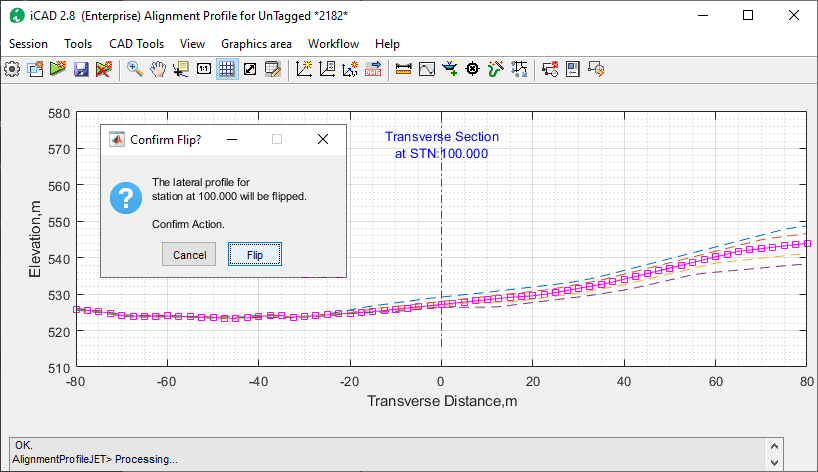
Use the Shift+, (<) and > key (Shift+,) to move back and forth between stations. The display will show transverse sections for 2 stations before and after the current station. In the example below, the transverse data for station 100 is reversed.
Step 3: Correct the Data
While positioned at the desired station, use the Workflow > Flip Direction menu command and confirm the action in the dialog. The data will be corrected as required.
Best Practices and Important Considerations
The profile extraction process relies on several key assumptions and conventions. Following these guidelines will help avoid extraction failures and save valuable time during your design workflow.
Direction of Increasing Station: The profile extraction process is designed to work from the beginning vertex of the alignment object towards its end vertex when extracting elevations at incremental locations. This follows the key convention that 'alignments are drawn from beginning to ending station.' For canal alignments, this means from upstream to downstream direction. All preceding and subsequent tasks to profile extraction build on this convention, making it mandatory to work accordingly to avoid multiple inconveniences as the design progresses.
Route Scaling: Canal routes must be referenced to coordinate axes generated by iCAD. While this referencing is generally flexible, the scaling used can significantly impact the quality and success of profile extraction.
⚠️ Critical Scaling Requirement: The current version is tested and validated for alignments with 1:1 scale (both WCS and LCS references). We strongly recommend strict adherence to this guidance, as results may be inaccurate otherwise.
Known Issue: Profile extraction processes may fail or return poor quality data when small scales (like 1000:1) are used to draw and reference alignment routes.
Incremental Distance Settings: Incremental length is specified for every profile extraction task, typically maintained at 20m intervals. iCAD and CanalNETWORK products can process profile data extraction at finer intervals up to 5.0 meters, which is helpful for precise design work and more accurate Bill of Quantities (BoQ) estimates. However, reducing incremental distance increases computational costs during the design process, as more station points must be processed for every route at all design and production stages.
The optimal incremental distance depends on project scale/type, available DEM data resolution, expected terrain variability, and anticipated canal size. We recommend limiting the minimum incremental distance to 10 meters.
Curve Data Limitations: The size of curves that can be incorporated into alignment profile data is limited by design constraints in iCAD and CanalNETWORK products. Irrigation canals are expected to meet general engineering principles. The software implements a programmatic approach to filtering curves provided by users in the original AutoCAD drawing. As mentioned above, the smallest allowable curve radius and length are limited to 15 and 20 meters, respectively. Provisions below these limits are considered impractical and are automatically filtered out during the extraction process.
💡 Important Tip: Add cross-section data from field surveys to a cloud source file (.csv) to ensure cross-sections represent sufficient detail. This is critical when working on weirs and dams.
This concludes the Profile Data Processing guide. For additional support or advanced techniques, refer to the iCAD documentation or contact technical support.