TerraForm
The TerraForm module in iCAD provides comprehensive tools for analyzing and visualizing earth modification works, enabling accurate quantity estimation for complex cut and fill operations. This powerful module addresses the significant challenges designers face when working with ground surface modifications.
Overview
TerraForm excels at handling intricate earthwork projects including:
- Earth and Embankment Dams - Complete dam structure analysis
- Bunds - Agricultural and industrial bund designs
- Dykes - Flood protection and water management structures
- Saddle Dams - Supporting dam infrastructure
- Trench Excavations - Complex excavation and backfill operations
The module automatically processes quantity calculations while providing detailed 3D visualization of earth modification works, whether in cut or fill operations.
Design Conventions
Understanding the following conventions is essential for successful TerraForm implementation:
Axis Orientation
- The centerline axis is drawn from right to left, facing downstream (FDS)
- When standing at the beginning station looking downstream:
- Left side = Upstream direction
- Right side = Downstream direction

Figure: Axis orientation showing upstream and downstream directions.
Section View Standards
- Section views consistently display:
- Left side = Upstream
- Right side = Downstream
- This applies to both the iCAD interface and Assembly Editor

Figure: Section view orientation with upstream and downstream labeling.
Prerequisites
Before starting a TerraForm session, you must prepare two essential objects in AutoCAD:
1. Axis Object
The axis object represents the centerline of your earth formation and serves as the foundation for all TerraForm calculations.
Requirements:
- Direction: Drawn from left to right, facing downstream
- Reference: Must be properly referenced in AutoCAD
- Profile Data: Must contain profile data generated using the AlignmentProfile module
- Location: Typically drawn over a contour or feature map for reference
Profile Resolution Guidelines:
The quality of your results depends directly on the profile data resolution. Use these recommended settings:
| Project Type | Offset Range | Increment | Use Case |
|---|---|---|---|
| Earth Dams | -100:10:100 | 10 meters | Large-scale dam projects |
| Small Dams & Bunds | -50:5:50 | 5 meters | Smaller embankment structures |
Tip: Higher resolution (smaller increments) provides more accurate results but increases processing time. Choose the appropriate balance for your project needs.
2. Host Object
The host object serves as the data container for all TerraForm design information and analysis results.
Key Characteristics:
- Stores all session data and calculations
- Must remain in AutoCAD throughout the project lifecycle
- Should be properly tagged for identification
- Critical: Never delete this object - doing so may make all stored information inaccessible
Best Practice:
Generate your host object using CadTools > Generate Host Sketch to ensure:
- Automatic tagging
- Consistent formatting
- Proper data structure
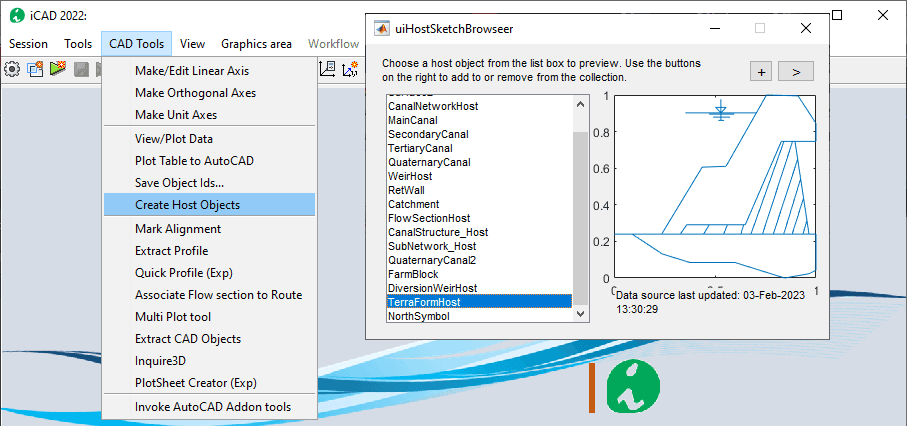
Figure: Generating a host object using CadTools for consistent data storage.
Important Limitations
⚠️ Note: TerraForm works optimally with single embankment reaches. Avoid modeling works that extend across multiple reaches, as this can compromise result accuracy and presentation quality.

Figure: Example showing the limitation of single embankment reach modeling.
Starting a TerraForm Session
Creating a TerraForm session follows the standard iCAD module workflow. This section guides you through the complete setup process.
Step 1: Launch the Module
-
Access Module Browser: Open the Module Browser from either:
- The iCAD main interface
- The workspace browser
-
Select TerraForm: From the module list, choose TerraForm and click Continue
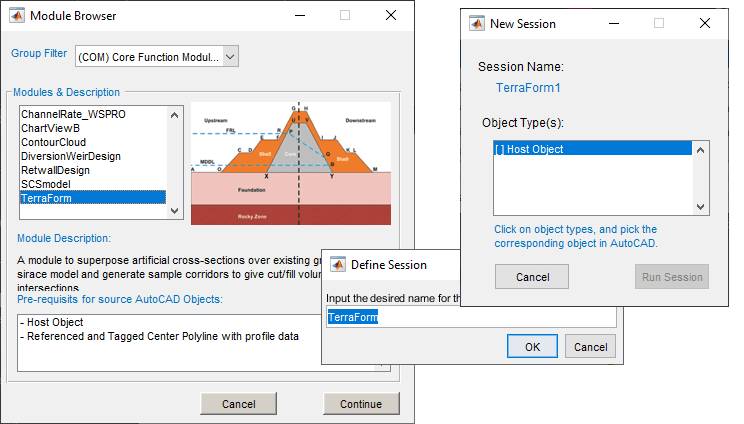
Figure: Module Browser interface showing TerraForm selection.
Step 2: Create New Session
- Name Your Session: When prompted, enter a descriptive name for your session
- Select Host Object: On the New Session dialog:
- Click the first object type listed
- Return to AutoCAD and select your prepared host object
- Start Fresh Option: If the host object contains no stored data, the Start Fresh dialog appears
- Choose
Pick Alignmentto begin
- Choose
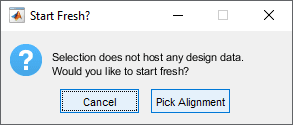
Figure: New Session dialog for creating a fresh TerraForm session.
Step 3: Select Alignment
- Pick Alignment Object: In AutoCAD, select your referenced alignment object
- Verify Profile Data: Ensure the object contains the required profile data
- Session Initialization: Upon successful selection, TerraForm displays the profile data in the main axis view
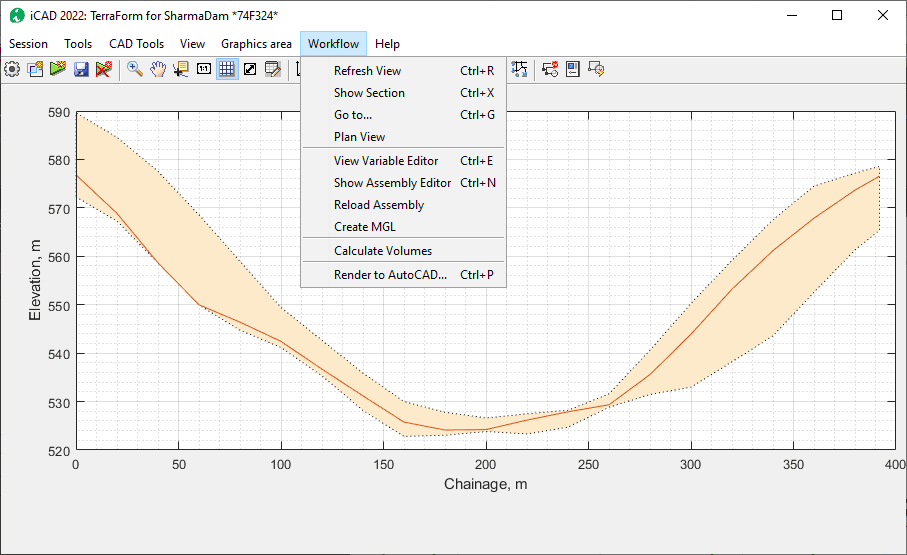
Figure: TerraForm interface showing profile data visualization.
Step 4: Access Workflow Tools
All TerraForm functionality is organized under the Workflow menu. From here you can:
- Create and manage assemblies
- Generate views and cross-sections
- Calculate volumes and quantities
- Export results and drawings
The following sections detail each workflow component and how to use them effectively for earth formation analysis.
Creating Assemblies
Assemblies are the fundamental building blocks of TerraForm analysis. They define the cross-sectional geometry of earth formations at various design levels, enabling accurate volume calculations and 3D visualization.
Understanding Assemblies
Purpose: Assemblies describe the geometric shapes of different earth formations:
- Bunds: Finished fill profiles and slope configurations
- Earth Dams: Complete dam structures including filter zones and impervious cores
- Trenches: Excavation profiles and backfill configurations
Key Role: Assemblies process formation data against existing ground levels, providing the foundation for all quantity calculations and design visualization.
Assembly Types
TerraForm supports two primary assembly categories:
Simple Assemblies
- Definition: Standard iCAD shape definitions without additional constraints
- Use Case: Basic earth formations with uniform cross-sections
- Components: Design level object + Shape data
Compound Assemblies
- Definition: Combinations of two assemblies with additional geometric constraints
- Use Case: Complex formations requiring multiple material zones
- Features: Advanced shape control and material specification
Assembly Components
Every assembly requires two essential components:
- Design Level Object: Defines the elevation profile along the alignment
- Shape Data: Specifies the cross-sectional geometry and material zones
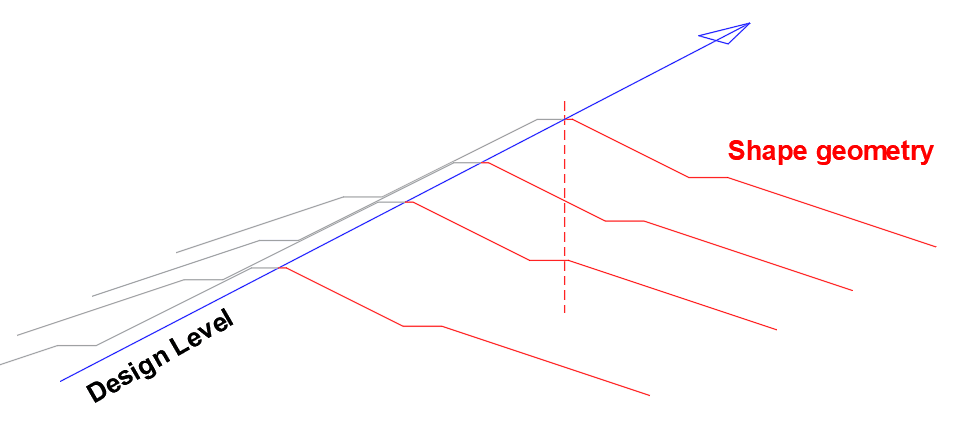
Figure: Assembly components showing design level and shape data integration.
These components work together to create complete spatial formation definitions, enabling TerraForm to generate accurate cross-sections, volume calculations, and 3D visualizations.
Creating Design Levels
Design levels define the elevation profiles for different formation zones along your alignment. These levels serve as the foundation for assembly creation and must be carefully prepared in AutoCAD.
Step 1: Prepare Profile Drawing
Design levels are created directly in AutoCAD using the profile drawing of your axis object. This approach allows for precise elevation control and visual verification of design intent.
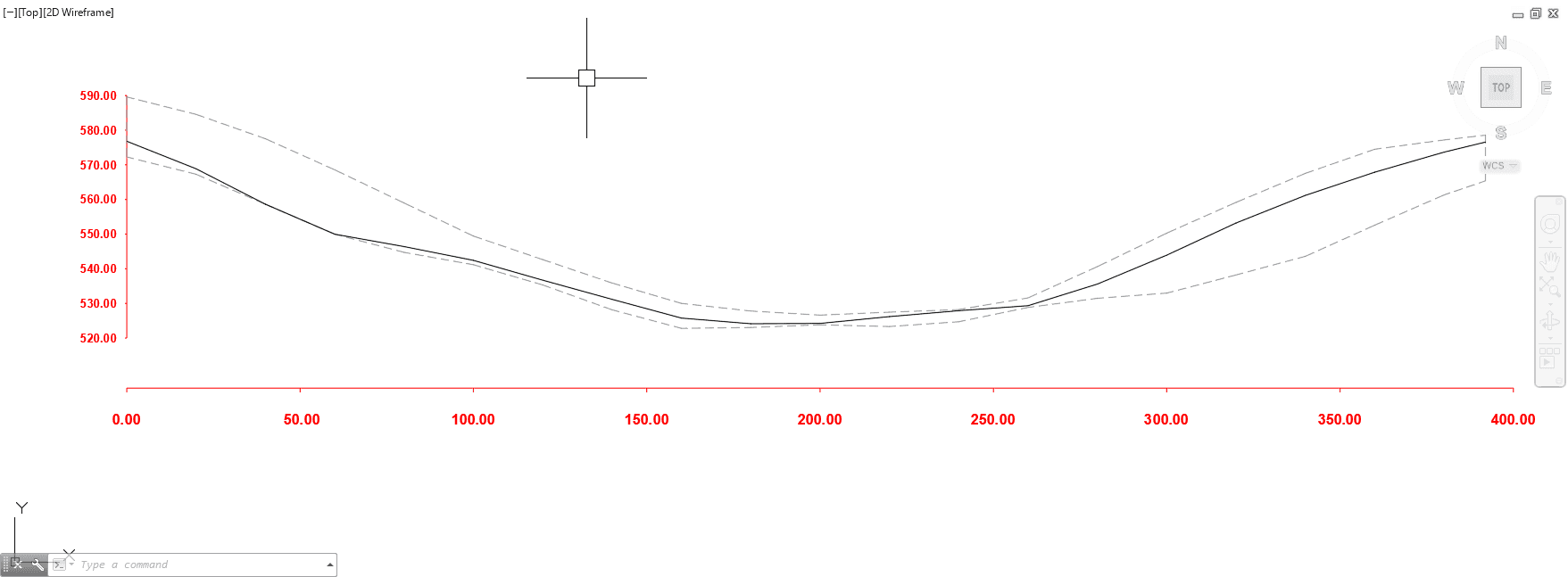
Figure: AutoCAD profile drawing showing axis object with elevation data.
Step 2: Define Formation Levels
For complex projects like earth dams, multiple design levels are typically required. The following example shows three essential levels for dam construction:
Earth Dam Design Levels:
- Crest Level: Top elevation of the dam structure
- Core Level: Elevation of the impervious core zone
- Blanket Level: Elevation of filter/transition zones
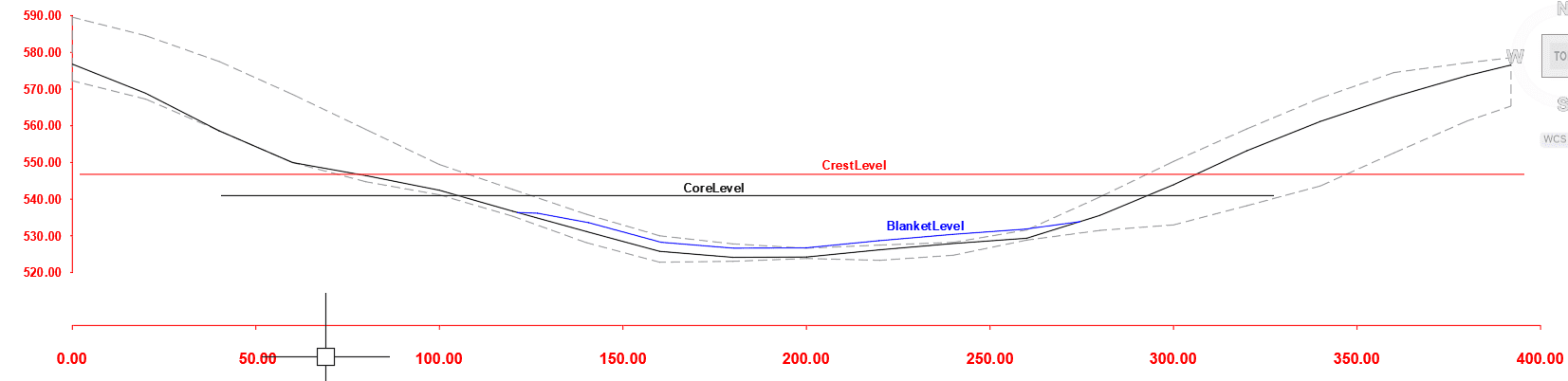
Figure: Multiple design levels showing crest, core, and blanket formations.
Step 3: Object Preparation
Before proceeding with assembly creation, ensure all design level objects are:
- Properly Referenced: Objects must be correctly referenced in AutoCAD
- Appropriately Tagged: Each object needs a unique, descriptive tag
- Naming Convention: Use underscores instead of spaces or hyphens in tags
Important: Design level object tags can only contain letters and underscores. Numbers cannot be at the beginning, and spaces are not allowed.
Creating Simple Assemblies
Simple assemblies are the foundation of TerraForm analysis. This section guides you through creating and configuring these essential components.
Step 1: Launch Assembly Editor
- Access Assembly Editor: Navigate to
Workflow > Show Assembly Editor - Interface Overview: The Assembly Editor provides tools for creating, editing, and managing assemblies
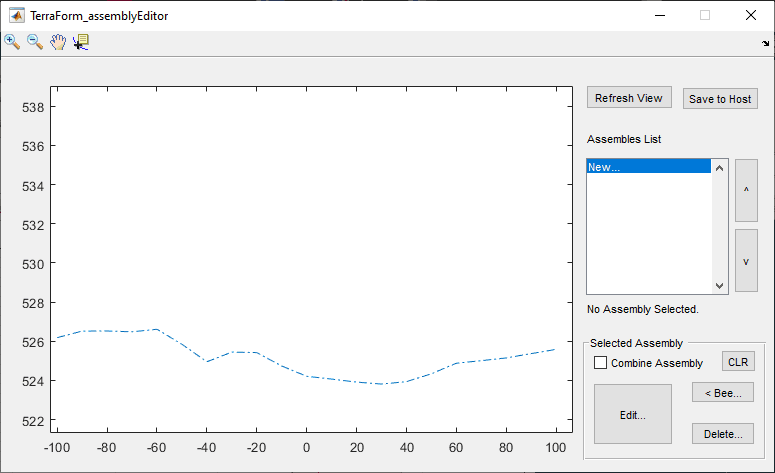
Figure: Assembly Editor interface for creating and managing assemblies.
Step 2: Create New Assembly
- Start Creation: Click
New…in the Assembly List - Pick Object Dialog: Select
Pick Levelbutton - Select Design Level: Return to AutoCAD and pick your desired design level object
- Variable Editor: The Variable Editor dialog opens with assembly configuration options
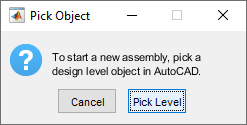
Figure: Pick Object dialog for selecting design level objects.
Step 3: Configure Assembly Properties
In the Variable Editor dialog, define your assembly characteristics:
Assembly Tag:
- Used for listing in the Assembly Editor interface
- Must contain only letters and underscores
- Numbers cannot be at the beginning
- No spaces allowed
Earth Shape Configuration:
- Defines embankment formation on left and right sides of centerline
- Use drop-down selector for preset values
- Both left and right specifications are required for valid assembly
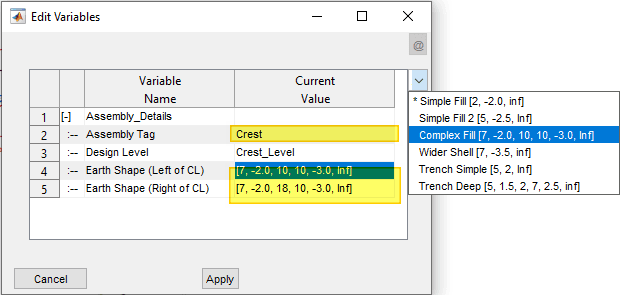
Figure: Variable Editor dialog for configuring assembly properties.
Step 4: Complete Assembly Creation
- Apply Changes: Click
Applyto create the assembly - Management Tools: Use provided buttons to edit or delete assemblies as needed
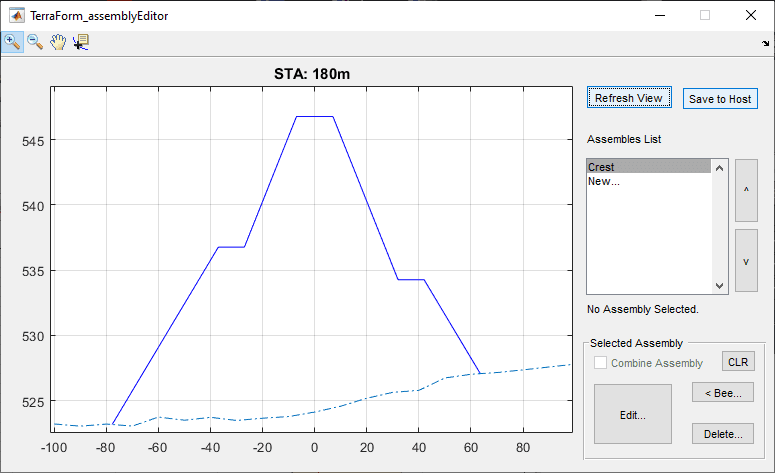
Figure: Assembly management interface showing created assemblies.
Step 5: Create Additional Assemblies
Repeat the process for each design level (e.g., core and blanket assemblies for earth dams):
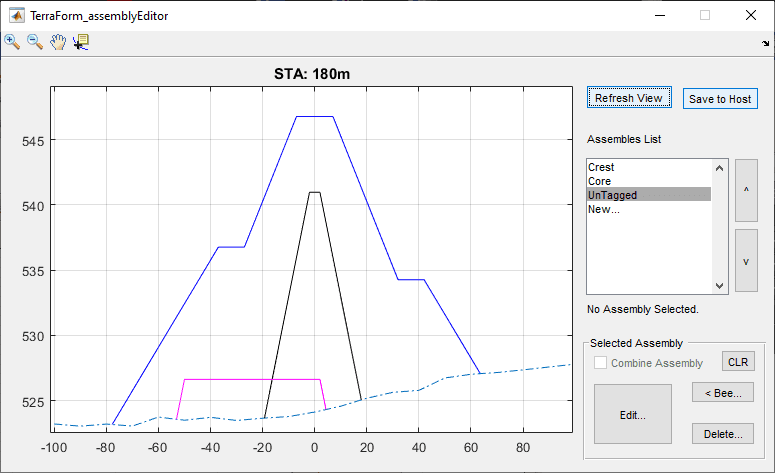
Figure: Multiple assemblies created for different formation levels.
Step 6: Edit and Review Assemblies
- Select Assembly: Choose from the assembly list to highlight in the graph area
- Edit Configuration: Click
Editbutton to modify assembly settings - Review Settings: Verify all configurations meet design requirements
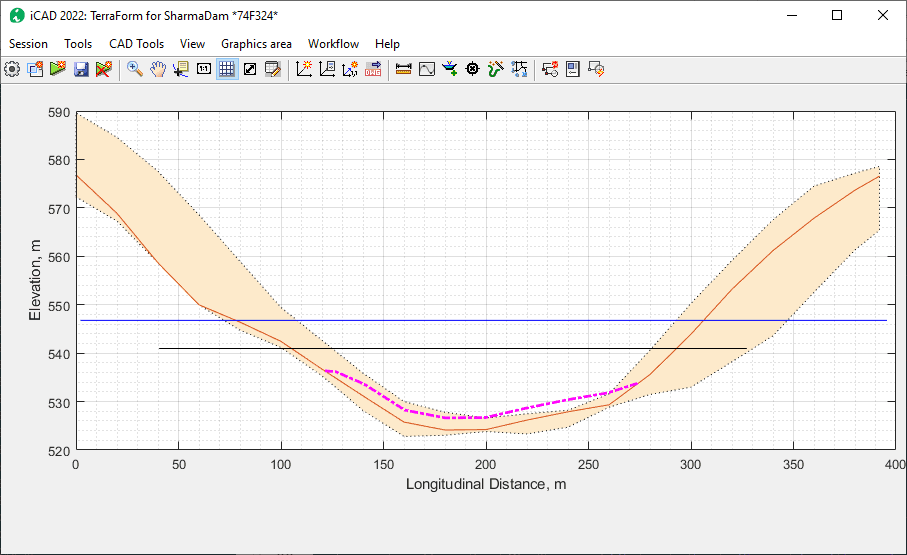
Figure: Assembly editing interface for reviewing and modifying settings.
Step 7: Update and Synchronize Views
After creating assemblies, synchronize the interface:
- Save to Host: Save all assembly data to the host object
- Reload Assembly: Use
Workflow > Reload Assemblyto refresh data - Refresh View: Update the main interface display
💡 Tip: If assemblies don't appear correctly, use the sequence: Save to Host → Workflow > Reload Assembly → Refresh View
Step 8: Dynamic Cross-Section Viewing
Access Workflow > Cross-section View to interact dynamically with assemblies:
- Drag the section bar along different stations
- View real-time cross-sections in both main interface and Assembly Editor
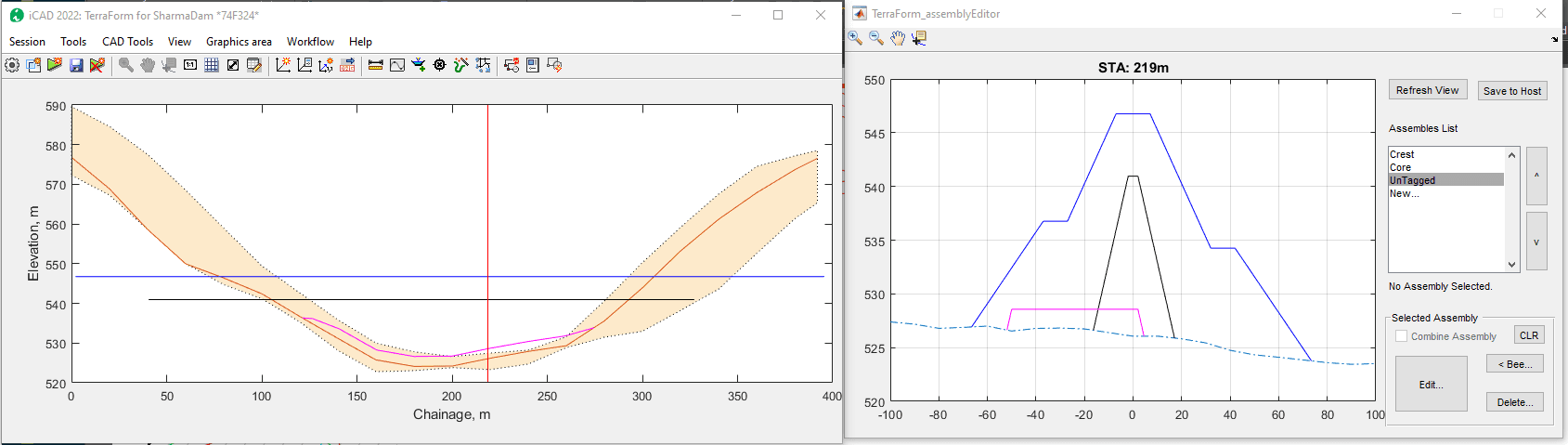
Figure: Dynamic cross-section view showing assembly interaction.
Creating Views
With assemblies properly configured, TerraForm can generate comprehensive views that help refine designs and respond to ground conditions. This section covers both section views and plan views.
Section Views
Section views provide detailed cross-sectional analysis at any point along your alignment, enabling precise evaluation of earth formation geometry.
Interactive Section Generation
Method 1: Interactive Selection
- Switch to Profile View: Press
Ctrl+Rto change to default (profile) view - Launch Section Tool: Access
Workflow > Show-section - Interactive Tool: A dynamic tool is created that updates the Assembly Editor window in real-time
- Select Location: Click anywhere on the profile to generate the section view
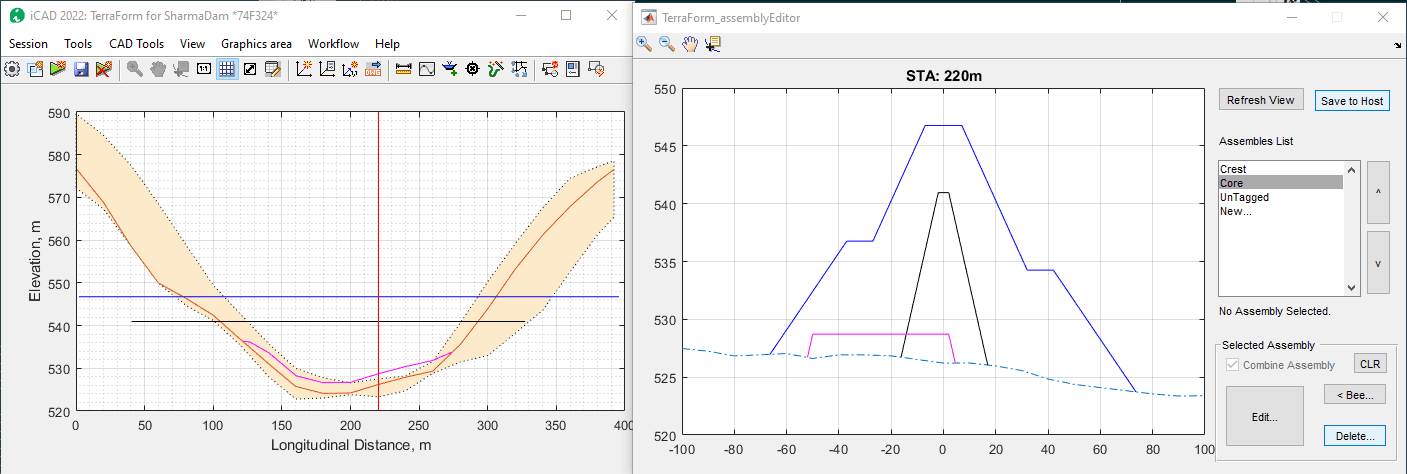
Figure: Interactive section tool for dynamic cross-section generation.
The section view for the selected location appears in the main iCAD interface:
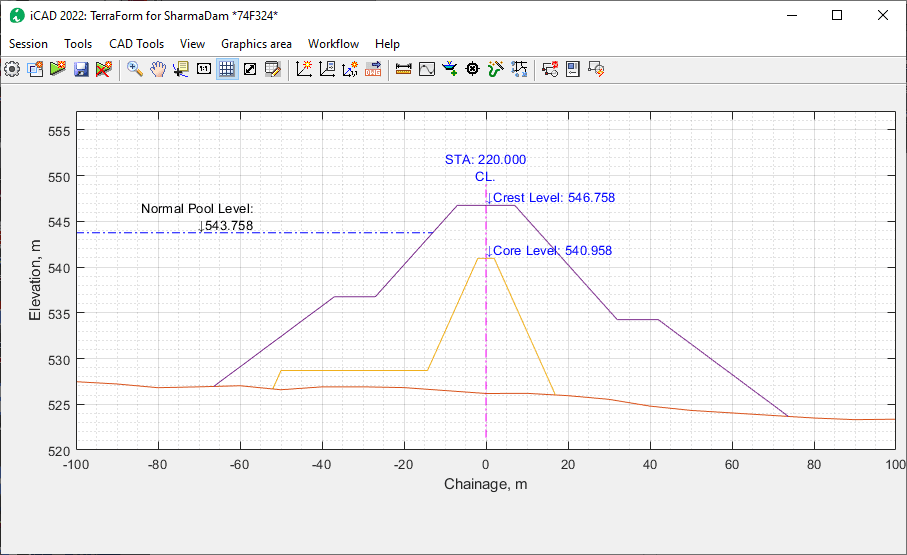
Figure: Generated section view showing detailed cross-section analysis.
Method 2: Direct Station Input
- Access Go To Command: Use
Workflow > Go Tomenu command - Input Station: Enter the required station value in the Input STA dialog
- Generate Section: The system creates the section view for the specified station
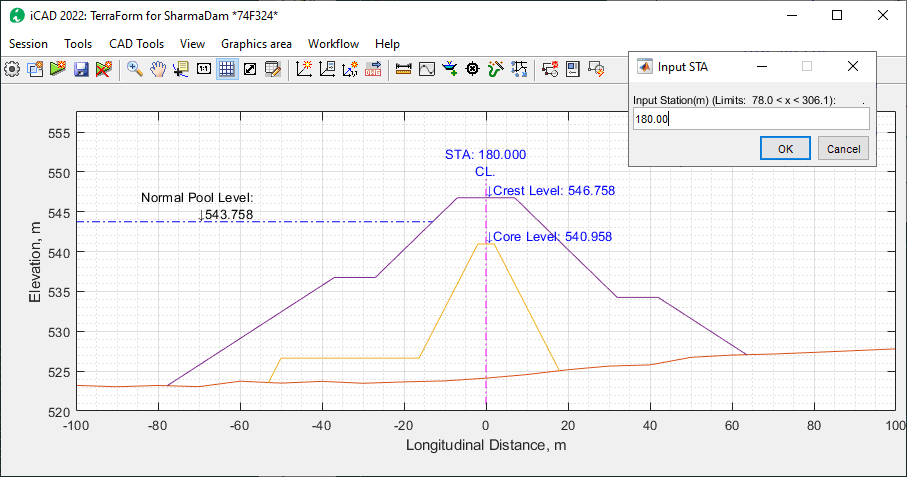
Figure: Station input dialog for direct section generation.
Pool Level Configuration
Pool level information enhances visualization by displaying water surface elevations:
Configuration Options:
- Text and Elevation: Adjustable via
Workflow > Variable Editor - Display Control: Set
Display Flood Levelvariable to control visibility - Positioning: Use offset values for text placement
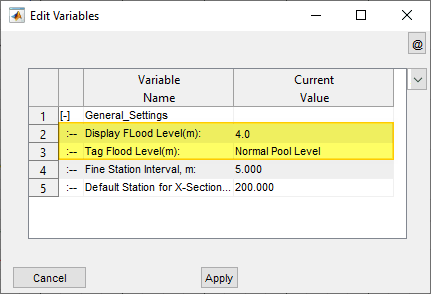
Figure: Pool level configuration in Variable Editor.
Pool Level Settings:
- 0.0: Suppresses pool level text display
- Negative Values: Renders text on the left (upstream) side
- Positive Values: Renders text on the right (downstream) side
Creating Plan Views
TerraForm generates high-quality plan views that accurately represent earth formations from above, providing essential visualization for design review and documentation.
Plan View Features
Key Capabilities:
- Ground Surface Integration: Combines existing ground surface with top-most assembly
- Slope Edge Display: Shows precise slope edges and transitions
- Direction Indicators: Hair lines indicate slope directions and flow patterns
- AutoCAD Export: Generates scaled drawings ready for AutoCAD import
- Presentation Quality: Professional-grade output suitable for reports and presentations
Plan View Examples
Straight Axis Alignment: This example shows a straight axis alignment with contours hidden under fill areas, demonstrating clean visualization of earth formation boundaries.
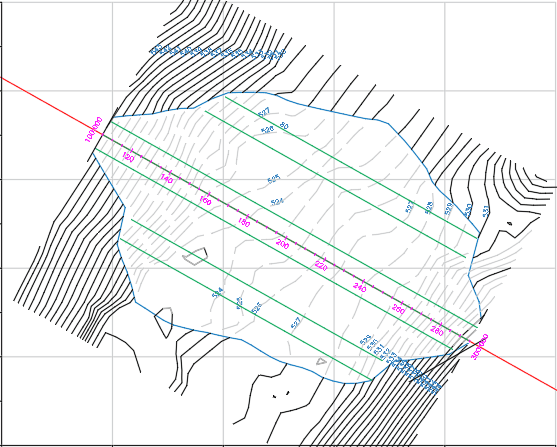
Figure: Plan view of straight axis alignment with hidden contours under fill.
Curved Axis Alignment: This example demonstrates how TerraForm handles complex curved alignments while maintaining accurate plan view presentation, showing precise formation boundaries and slope transitions.
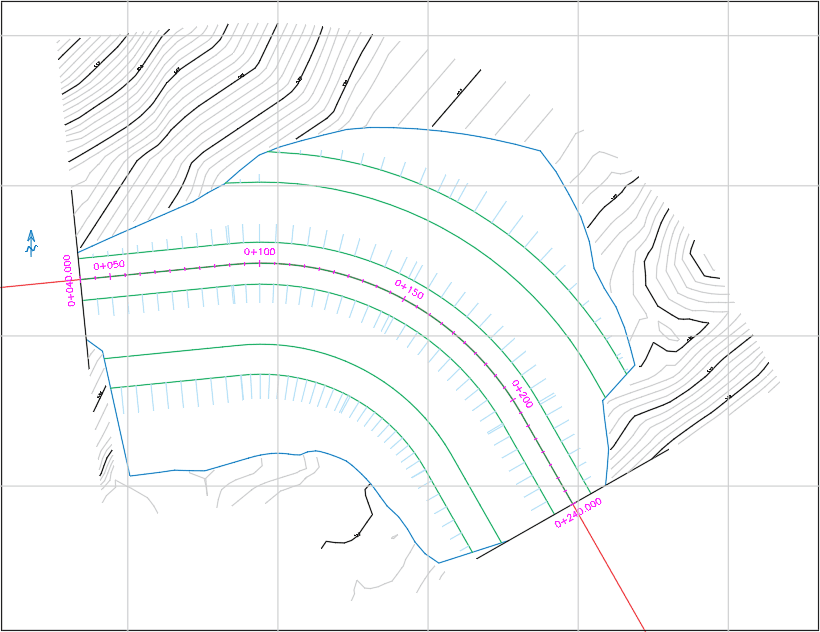
Figure: Plan view of curved axis alignment showing accurate formation presentation.
Generating Plan Views
Access Plan View Tool:
- Launch Command: Navigate to
Workflow > Plan View - Configure Options: Choose contour generation settings as desired
- Generate View: Proceed with plan view creation
- Export Options: Select scaling and export format for AutoCAD integration
The system automatically uses the top-most assembly in your assembly list as the reference for plan view generation, ensuring consistent and accurate representation of your earth formation design.
Generating Fill Work Estimates
With assemblies properly configured, TerraForm can calculate accurate volume estimates for all earthwork operations. This section covers the volume calculation process and result interpretation.
Volume Calculation Process
Step 1: Launch Volume Calculation
- Access Command: Navigate to
Workflow > Calculate Volumes - Initiate Process: The system begins processing volume calculations for all assembly areas
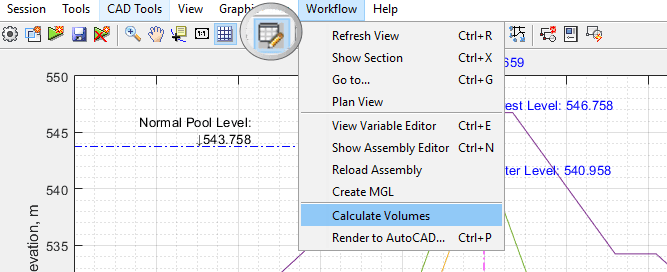
Figure: Volume calculation command in the Workflow menu.
Step 2: Monitor Calculation Progress
The calculation process displays a progress bar showing:
- Current processing status
- Estimated completion time
- Station-by-station processing updates
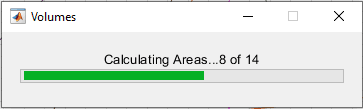
Figure: Volume calculation progress bar showing processing status.
Step 3: Review Results
Data Table Display:
- Results are automatically sent to the Data Table
- If not visible, toggle table visibility from the toolbar menu
- Results include detailed volume breakdowns for each assembly
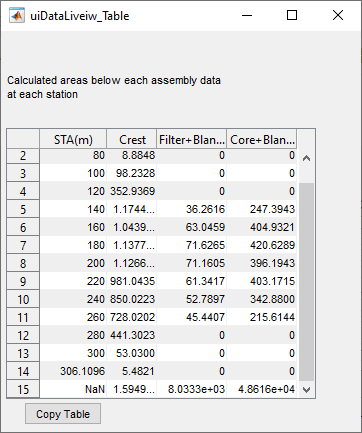
Figure: Data table displaying calculated volume results.
Understanding Volume Results
Volume Categories:
- Individual Assembly Volumes: Net volumes for each assembly (single or combined)
- Cumulative Volumes: Total volumes from start to current station (shown in last row)
- Station-Based Calculations: Volumes calculated for each partial station interval
Calculation Method:
Technical Note: TerraForm uses the trapezoidal method of integration to calculate volumes at each partial station and across the entire station range. This method provides accurate volume estimates by approximating the area under the curve using trapezoidal segments.
Volume Calculation Methodology
TerraForm employs the trapezoidal integration method for precise volume calculations. This mathematical approach ensures accurate estimation of earthwork quantities across complex formations.

Figure: Trapezoidal integration method visualization for volume calculations.
Mathematical Foundation:
The volume calculation method generalizes to the following formula:

Figure: Mathematical formula for trapezoidal volume calculation method.
Where:
- x1, x2, ..., xn: Station locations for calculations in the range of interest
- A(xi): Cross-sectional area at station xi
- Δx: Station increment between calculation points
Data Export and Documentation
Copy Table Functionality:
- Use the Copy Table button to export results
- Data can be pasted into spreadsheet applications (Excel, OpenOffice)
- Enables further analysis and documentation
- Supports integration with external reporting systems
Assemblies with Tracer (Bees)
Tracer assemblies provide advanced geometric control by incorporating additional constraints that dynamically modify assembly shapes along the alignment. These constraints enable complex formations that respond to specific design requirements.
Understanding Tracer Constraints
Definition: Tracer assemblies include geometric constraints defined using AutoCAD objects representing plan view constraints.
Purpose: Constraints control the extent to which assembly parameters (b,m,h triplet) extend at any given station, enabling:
- Variable width formations
- Complex geometric transitions
- Site-specific shape modifications
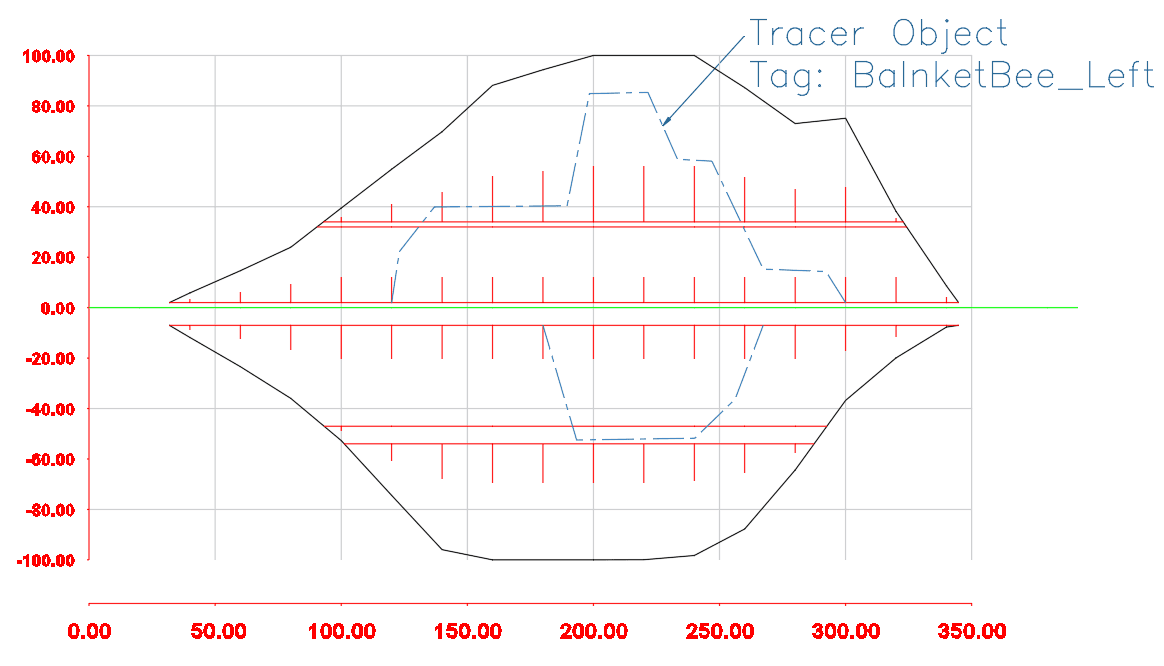
Figure: Plan view of fill work showing schematic tracer lines for geometric constraints.
Tracer Line Requirements
Object Preparation:
- Scale: All tracer lines must be drawn to scale
- Reference: Must be referenced to a valid axis pair
- Tagging: Must be properly tagged for identification
- Geometry: Represents the plan view of desired constraint
Adding Tracer Constraints
Step 1: Select Assembly
- Choose Assembly: Select the target assembly from the list box
- Access Tracer Tool: Click the Bee button to activate tracer mode
Step 2: Select Tracer Object
- AutoCAD Selection: AutoCAD enters select mode with prompt "Pick a Tracer Object:"
- Choose Object: Select the prepared tracer line object
- Apply Geometry: The selected object's geometry is applied to the assembly
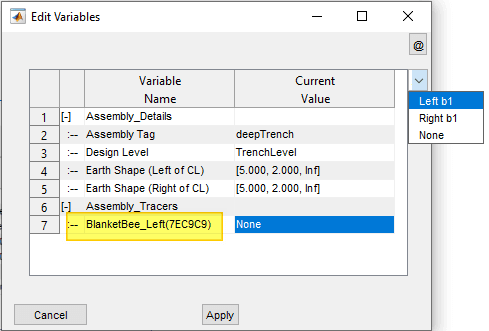
Figure: Tracer object application to assembly configuration.
Step 3: Configure Application
- Edit Assembly: Click the Edit button to access configuration
- Verify Inclusion: Confirm the selected object appears in the last row
- Choose Side: Select application to either left or right side of assembly (rows 4 or 5)
Dynamic Assembly Behavior
Real-Time Updates: Cross-section views now show assemblies dynamically changing size and shape as the section line moves along different stations, reflecting the tracer constraints.
Visualization: The main interface displays how tracer constraints affect assembly geometry at each station location.
Important Limitations and Notes
⚠️ Critical Limitations:
Top Assembly Restriction: Tracer bees cannot be applied to the top-most assembly in the list. If lower assemblies with tracer data are moved up, the tracer data will be cleared upon reload.
Station Assignment: Assigning different assembly sets for different station sections is not currently supported.
Coordinate Editing:
- Tracer line and design level coordinates can be updated using
Workflow > Reload Assemblies - Never edit starting coordinates - if modified, re-reference objects before reloading
💡 Tip: Use
Workflow > Reload Assembliesto update tracer line or design level changes without leaving the session.
Modified Ground Levels Processing
Real-world earthwork projects often require fill operations over prepared ground surfaces that differ significantly from original ground levels. TerraForm's Modified Ground Levels (MGL) feature enables realistic modeling of these conditions, producing accurate drawings and quantity estimates.
Understanding Modified Ground Levels
Purpose: MGL processing allows fill works to be modeled above excavated or prepared ground levels rather than original ground surfaces.
Applications:
- Foundation preparation for embankments
- Trench excavation and backfill operations
- General Foundation Level (GFL) modeling
- Realistic earthwork quantity calculations
Initial Setup
Current State: Fill works are initially drawn over existing ground level, as shown in the example assembly definition.

Figure: Initial assembly definition showing fill works over existing ground level.
Creating Modified Ground Levels
Step 1: Launch MGL Creation
- Access Command: Navigate to
Workflow > Create MGL - Select Assembly: Choose the Trench assembly representing the General Foundation Level (GFL)
- Confirm Selection: Click
Okto proceed

Figure: Pick Assembly dialog for selecting GFL trench assembly.
Step 2: Monitor Processing
Progress Tracking:
- Progress bar displays calculation status
- Status bar shows detailed processing information
- Results are automatically sent to the Data Table view

Figure: Progress bar and status display during MGL processing.
Step 3: Review Results
Data Table Analysis:
- Access Table View: Click the Table View toolbar if not already visible
- Review Calculations: Results show Ground Level Modifications calculations
- Summary Values: Highlighted summary values appear at the bottom of the table

Figure: Data table showing ground level modification results and summary values.
Managing Modified Ground Levels
MGL Control Options
Access Control: Navigate to Workflow > Create MGL again (notice the unchecked status)
Available Options:
- Toggle: Switch MGL status on/off (check mark indicates active state)
- Clear: Remove all modified ground level data and start over
- Modify: Create additional modified levels for complex formations

Figure: MGL control dialog showing toggle, clear, and modify options.
Visualizing MGL Effects
Dynamic Section Viewing:
- Launch Section Tool: Use
Workflow > Show Sectionor pressCtrl+X - Interactive Review: Move cursor to see modified ground level effects
- Visual Indicators: Thick gray lines indicate the new ground level

Figure: Section view showing modified ground level with thick gray line indicator.
Advanced MGL Processing
Adding Trench Modifications
Incorporating Complex Shapes:
- Access Modify: Choose Modify option from MGL control dialog
- Select Trench Assembly: Choose assembly representing deep trench geometry
- Process Modification: System processes the additional ground level modification

Figure: Pick Assembly dialog for selecting deep trench modification.
Reviewing Volume Changes
Updated Calculations:
- Access Table View: Review updated volume calculations
- Highlighted Changes: Cumulative values show estimated volume changes
- Summary Analysis: Bottom table values reflect all modifications

Figure: Data table showing updated volume calculations with highlighted changes.
Final Assembly State
Updated Assembly Editor: Fill works now extend to the newly modified ground level, showing realistic formation geometry.

Figure: Assembly editor showing fill works extending to modified ground level.
MGL Persistence
Data Management: Modified levels created through this process are automatically saved and available for further modification or use in subsequent analysis sessions.
Resolving modelling Issues
When working with alignments and their assemblies, it is often needed to update data to suit the desired layout. The following options are available.
-
Reload Alignment The alignment object may not have the right coordinates or the correct resolution of profile data. This can be adjusted at any time as follows:
- Close the Terrafrorm module (if open).
- Make the necessary adjustment to the alignment object (reverse, move...)
- Re-extract the profile data with the desired resolution, and save the data.
- Reopen the Terraform session, then go to
Workflow > Reload Alignmentmenu command. The new profile data is brought, and updated.

-
Modify MGL levels with previosuly calculated MGL enabled (toggled on). Otherwise, the newly calcualted MGL for modified surface will not be accurate.
-
If assemblies are broken, resulting quantities may not be accurate (even when using refine assembly option). The main cause is often horizontal segments of the assembly extending far beyond the limits of the top most assembly, and potentially crossing the exitsing ground level (OGL). This results in sometimes bad trimming process.

This also causes area estimation error that can not be corrected using Refine Assembly settings.

To resolve this, it is advises to use tracer data to limit the extents of the horizontal segements for the assembly in question.

-
Assembly Overlap Each assembly is understood to envelop the others below them. Order of appearance therefore matters. Some times, the lower assemblies may extend beyong the boundary shape of the topmost envelop. In such cases, the algorithm attempts to trim those vertices extending beyond.
Sometims This process may not be succesful, and result in the same boundary as the top most assembly, causing display and processing issues. This is typically highlighted by a BLINKING zone (when clicked).
Resolve the issue by adjusting the coordinates of the assembly with issue, and refresh view.
Listing Volumes
Volumes can be listed for all fill and cut related works in one step.
-
Start the Worflow > Calculate Volumes to update all figures.
-
Then use the Workflow > List Volumes.... A dialog appears requesting input for desired stations. One can choose any length span to calculate volumes with in valid ranges.

-
The volumes will be listed in the table view as shown below.

Descriptive Notes:
-
The Fill Works represent fill volumes involved for each assembly above the last modified gorund level (MGL).
-
Volumes for combined assemblies are shown on the first of the two assemblies (in order of appearance). The second assembly reports zero volumes. (See Zone_2B+DS_Filter, and DS_Filter columns above.)
-
Cut Works involved are reported with respect to the Original Ground Level (OGL).
-
Two sections
For better visibility, the data can be coppied to cliboard and pasted in a spreadsheet application such as MS Excel, or Open Office.
Note:
Known Limitations
-
There are not limits to the number of assemblies that can be defined. However, the following processing limits apply:
- Only two assemblies can be combined together.
- Modified ground levels can be calculated for a maximum of two assemblies. The assemblies used for each modificatio run can be either simple or combined.
- Cross-sections can only be generated at station locations captured during profile extraction.
-
Rarely, wrong presentations may appear on cross-section drawings from modified ground levels (as shown below). These have no impact on quantity estimation, and the overall accuracy of the other elements of the drawing.

END.