iCAD and Related (CanalNET) Products Setup and Licensing
Welcome, and Thank you for choosing to use our soluitions.
iCAD software offers a colleciton of modules for the design, analysis and documentation of spot structures in water resources development projects. These include dams, diversion weirs, water surface profile computations, surface modelling, and more.
CanalNET software is an all-in-one solution for the design, analysis and documentaiton of networked canal irrigation systems. It is a complete solution, with capability to generate detailed technical drawings to AutoCAD, and reports in different formats.
Follow below steps to setup your environment and enjoy our products.
Stay up-to-date:
- Connect with us on LinkedIn (opens in a new tab)
- visit Product Website (opens in a new tab)
- Wrtie to us support@quanomics.com

Team Quanomic
System Requirements
iCAD and related software products have the following system requirements. These are the minimum recommended capcity specifications.
- Operating System: Windows 10/11
- Architecture: X64
- Processor: Coire i7 or latter
- RAM: 4GB or more
- Main/Alternate Screen: FHD (1920x1080) (Note: two screens strongly recommended for using AutoCAD side by side.)
- AutoCAD: 2018 or latter
Notes: Using on i5 machines is possible, but performance is not guaranteed.
Register for License
Registering on our platform is the first step. Go to Customer Registration (opens in a new tab) and provide your details.
You will recieve an email an email. Confirm your email usig the link sent in the email.
**Note:**You will get access to all your license information using this account information you create.
You can purchase, access and service your license for your prefered product using this account. If you are part of an evaluation program, we will avail the license you need with in 24hrs(max).
Installation and setup guide
Start by downloading both your installer and the update patch from our Product Websites (opens in a new tab). Please, DO NOT UNZIP any of the files.
Once you have the copies, follow below steps to install the applicaiton.
-
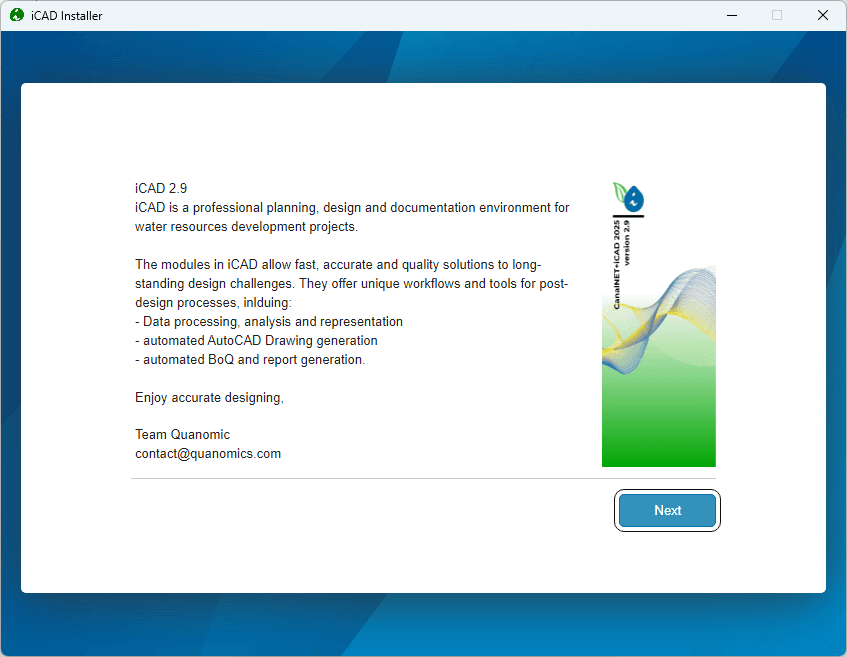
To begin installation, run the downloaded installer file.
Note: For iCAD installation, first unzip or extract the downloaded file. Then, click on the installer file.
-
Accept the default destination folder, and check the Add Shortcut to Desktop option.
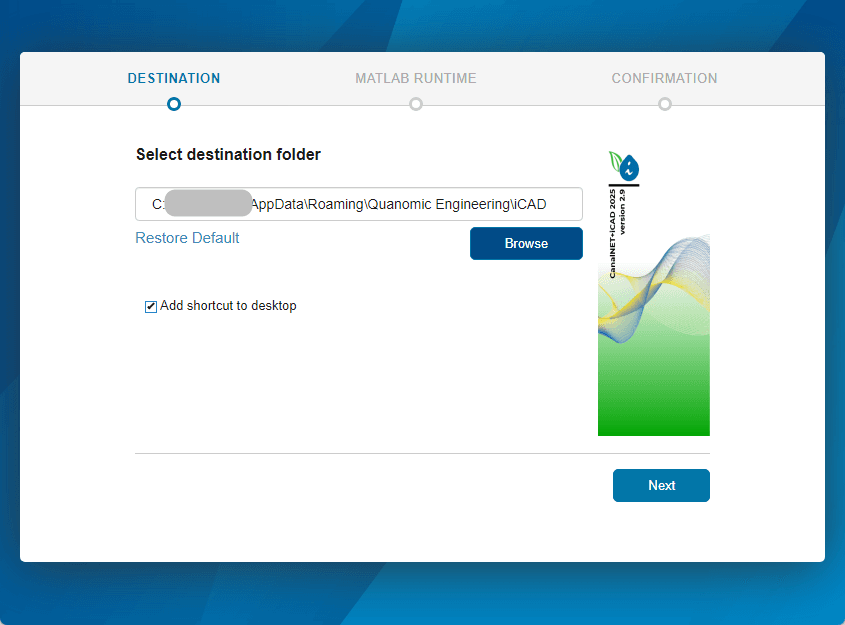
Note If you choose a differnt location for installation, make sure your windows user account have full control access previllages to the folder, or the application will not work properly.
-
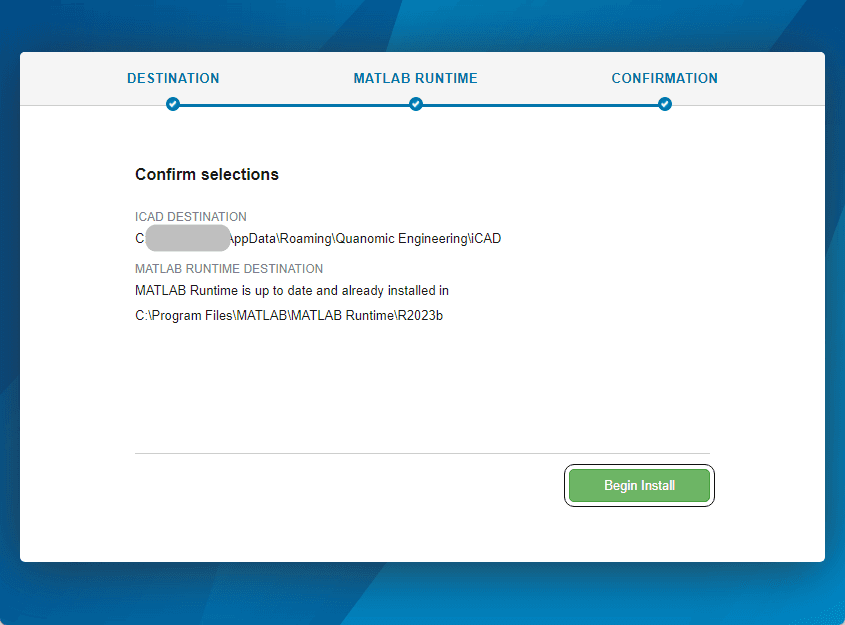
Required Software: Matlab runtime is a required software, and comes bundled with your installer. Accept to install, and hit
Begin Installbutton.
-
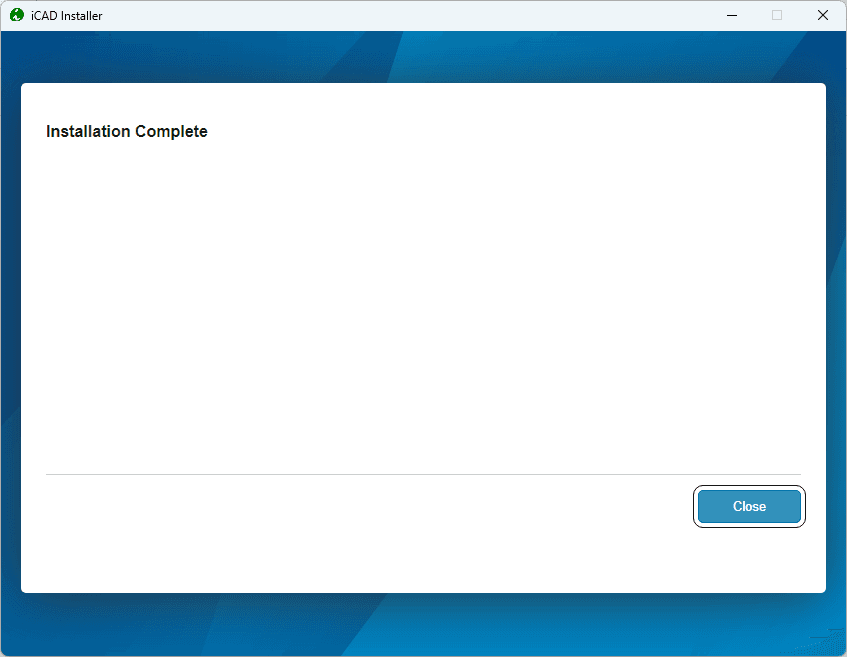
Confirmation: Upon completion, the installation exits with the following dialog. Click
Closeand exit.
Before you move on, do one final edit as follows.
-
A short cut should be available on the desktop. Right-click on the product desktop icon, and choose
Properties.
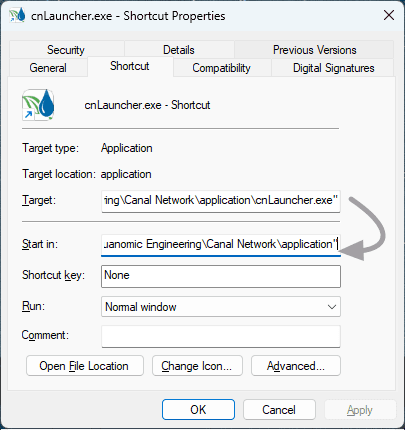
In the cnLauncher dialog copy the contents in the Target field, and paste to the Start In field. Then, remove the last part of the text you pasted \cnLauncer.exe.
Important: When editing the path, make sure the closing quote is NOT deleted.
-
Hit
Applyand close the dialog..Now, you are ready to lauch the application.
Additional Tip To allow you to start cnLauncher from the Windows Taskbar, type cnLauncher and right click on the icon. Choose
Open File Location. Right click again on the short cut, and shooseProperties, then repeat the above step to edit the "Target* location.

Launch your product, and the main interface should be displayed.
Note: Be patient on first start, it may take several seconds to see the interface. Be patient. If you need to, monitor progress in Windows Task Manager.
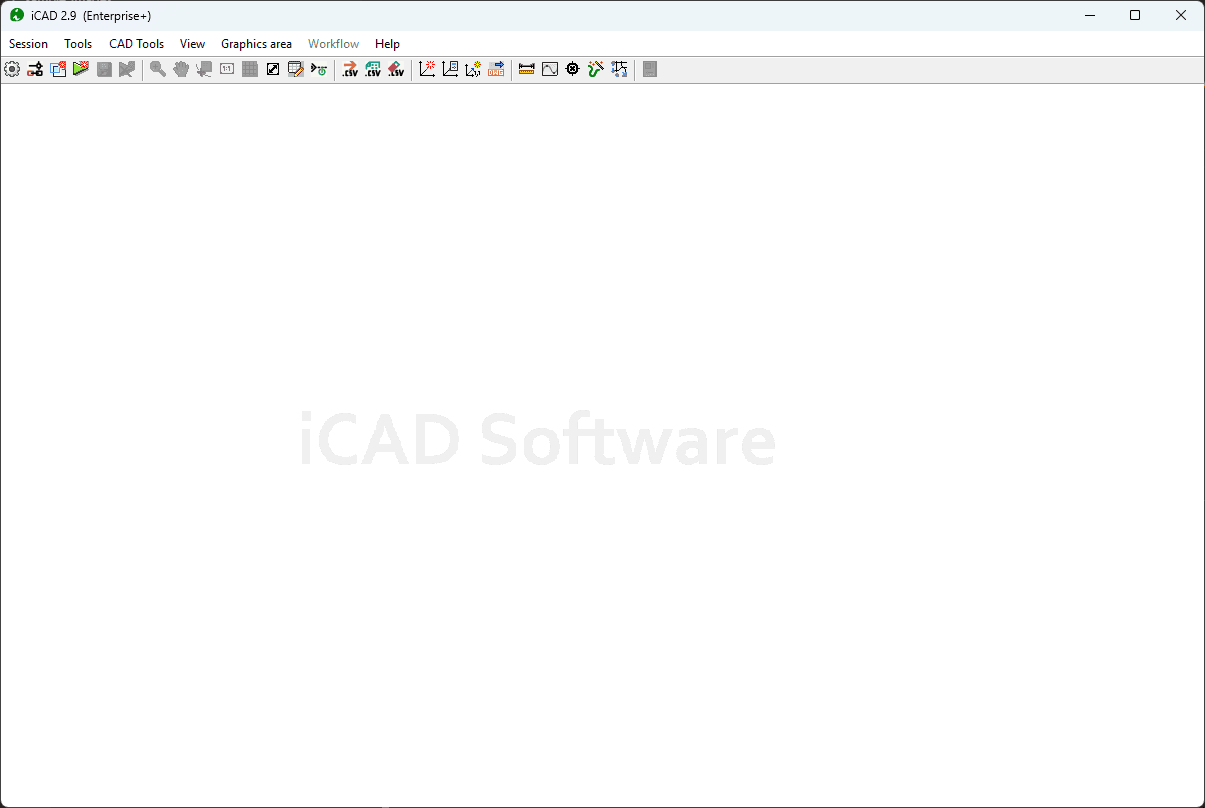
On first start, you may get Update Required dialog. This is normal, especially if there are key updates available after your installer was issuer. Below section explains the steps you need to take.
Update Your product
Periodic updates are released to ensure users get the most out of our proeucts and solutions. Random queries are made to our websites to check if updates are available.
Note: This may also be automatically required upon installation.
To update a product follow below steps:
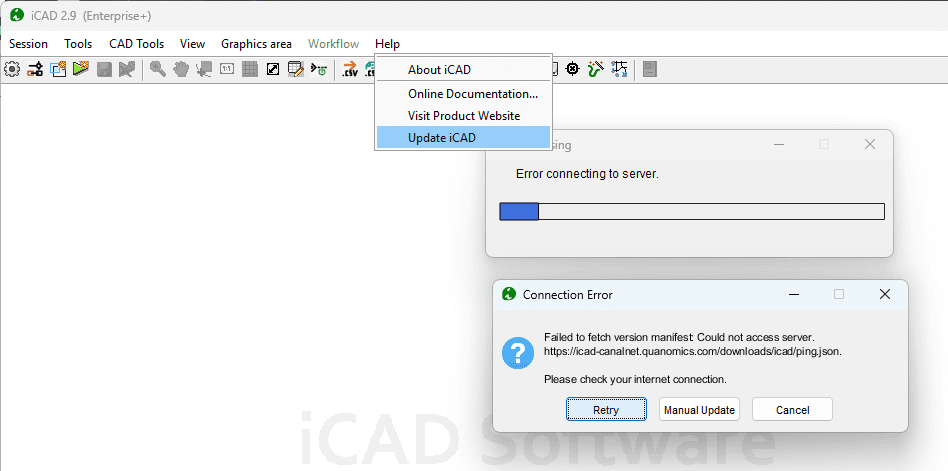
-
Choose, Update- Manually, and point to the download folder where you have the update patch you downloaded above
:Important: The update patch must be provided as downloaded. DO NOT UNZIP.
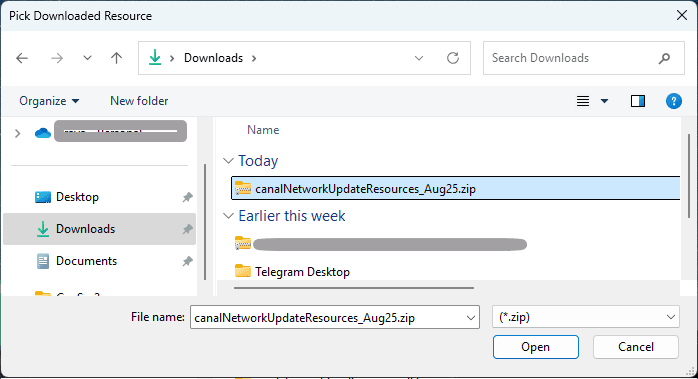
-
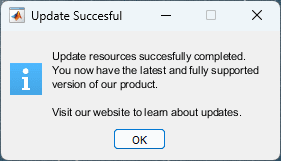
This will automatically deploy the patches, and you should get an Update Succesful dialog.
Licesning Your product
The next step is licensing your product. Upon launch you will find the following interface.
Note: You will need active internet connection to complete this action.
-
Choose Activate CanalNET online.
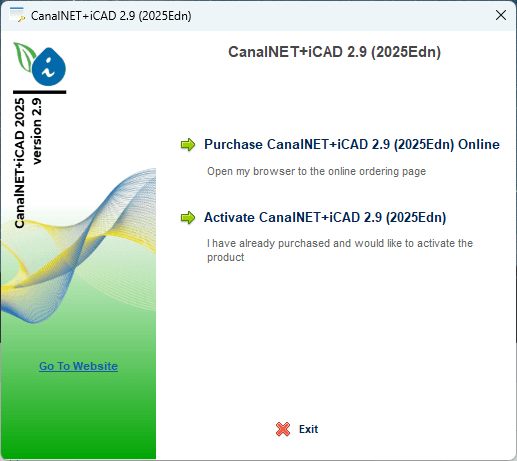
Note: More direction will be added soon, for customers who want to purchase directly.
-
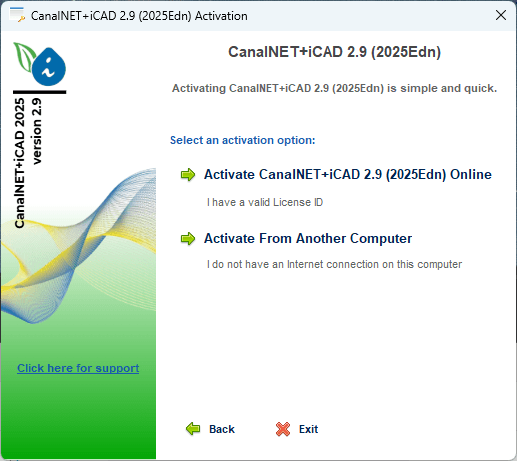
Then choose Activate Online option.
-
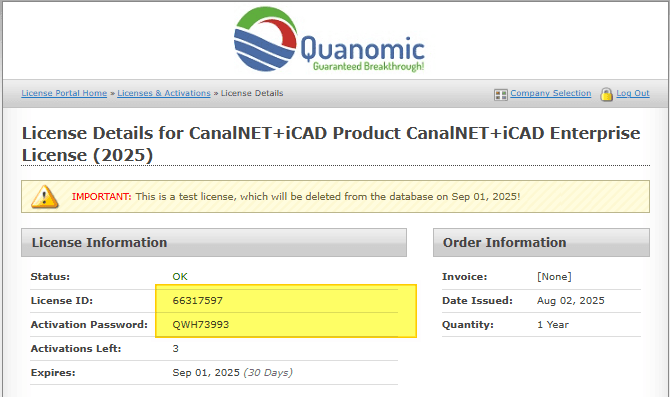
Collect your license information.
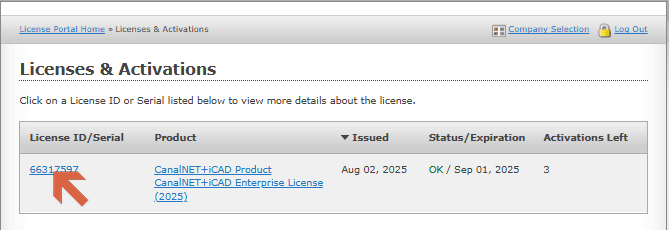
You can find this information available at your customer portal (opens in a new tab). Once on the site, select
Licenses and Renwales.
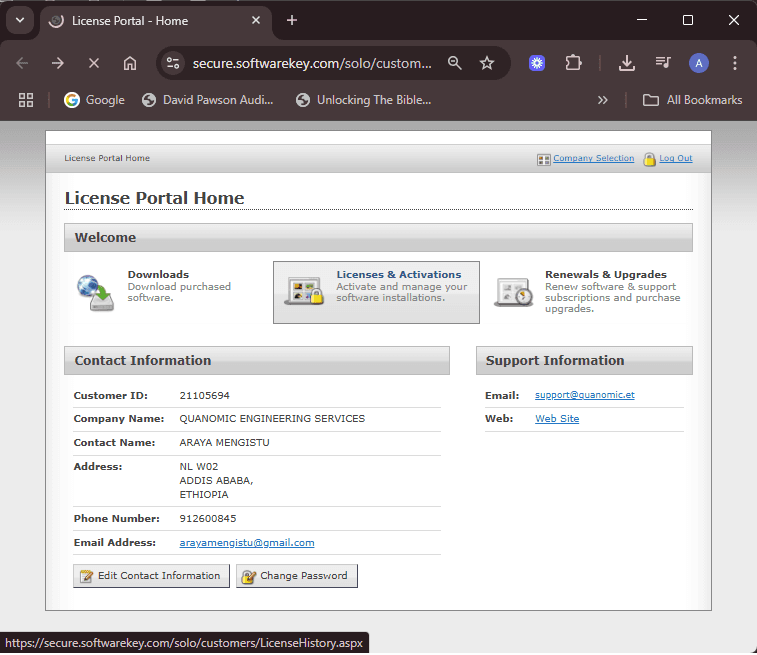
This will open the following page. Click on your license ID, to view more details.
Copy and paste the License ID and Activation Password in below step.
-
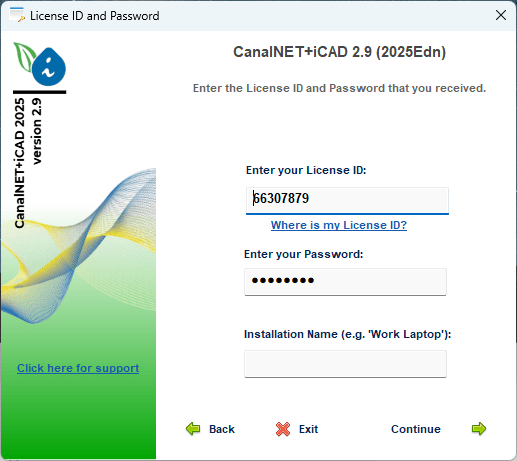
Provide the license details, and hit
Continue.
-
The activation process will complete, and allow you to proceed.
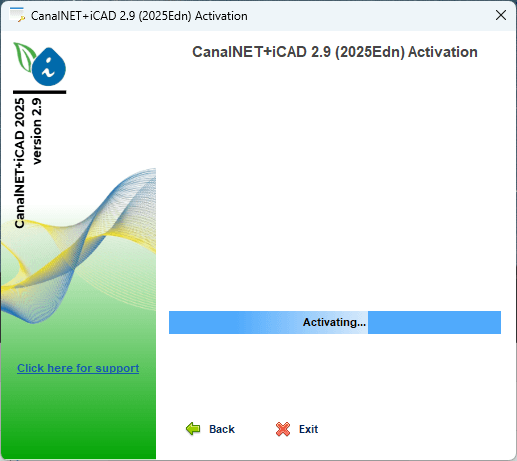
The products interface is now available.
Setup AutoCAD for use with iCAD and related products
This is the final step, that allows you to seamlessly work with your AutoCAD application.If you don't complete this step, it is common to get the Failed to Link warning dialog whenever you attempt to do tasks that involve AutoCAD.
For example, on your CanalNET application, go to Workspace > Load Network menu command. You will see one of the following messages.
Scenario 1: If a running AutoCAD application is not detected while launching iCAD. That is normal, and continue by hitting Ok button. The application will start.
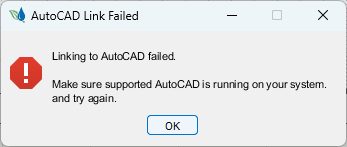
Note: If AutoCAD is running and the above dialog still appears, then the version of AutoCAD may not be supported. Install a supported version, and try again.
Scenario 2: If a running AutoCAD application is deteceted, the following dialog appears.
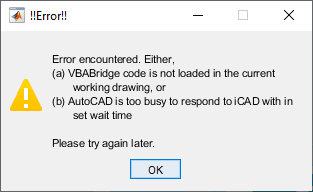
Either of the above issues happen because AutoCAD is not setup yet. Follow below steps to resolve this.
-
Check VBA enabler in your AutoCAD applicaiton. To check status, type -vbaide on your AutoCAD's command line.
-
If an interface appears with out a dialog, your AutoCAD is ALREADY enables, and skip to the next step.
If a dialog appears, asking you to download the feature, follow the link, download, and install it. Check using the command in step 1 above.
:Note: You may need to to restart AutoCAD or your PC to get the addon working. following dialog appears,
-
In AutoCAD environment, go to the command line and input -appload command. AutoCAD will respond by invoking the Load/Unload Applications dialog.
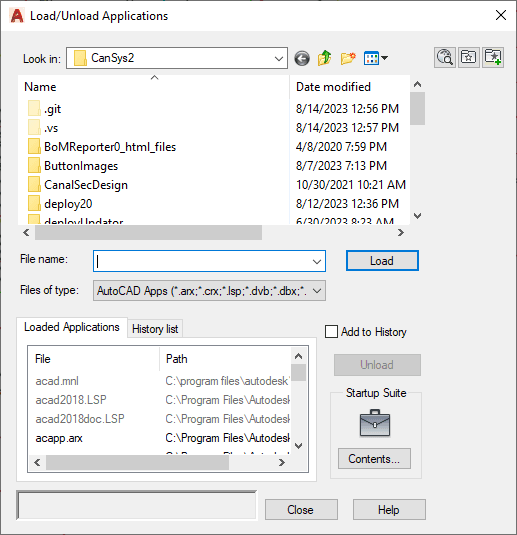
Click on the
Contentsbutton in the Startup Suite pannel. -
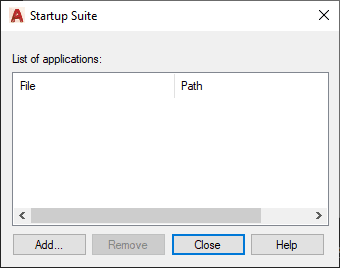
In the startup suite dialog, hot
Addbutton.
-
Navigate to the installation folder.
Start by right clicking on the desktop shortcut and click
Open File Location. Click on the address bar, and copy the entire path to clipboard. Then under Add file to startup suite dialog of AutoCAD, right click on the path information and paste. Then choose iCAD Bridge.dvb.
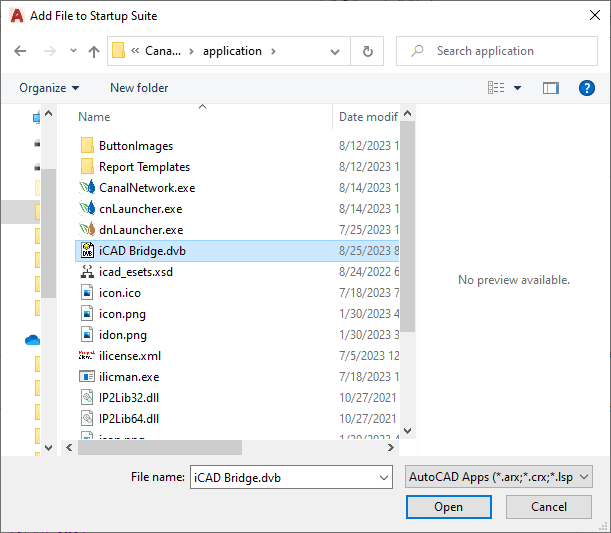
**Note:**The default path has the following format: C:\Users<username>\AppData\Roaming\Quanomic Engineering<Product Name>\application.
-
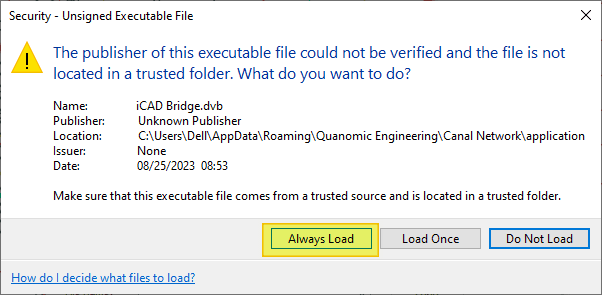
The Security dialog displays. Choose
Always Loadbutton.
-
The Startup suite dialog now updates its contents listing iCAD Bridge.dvb in the list.
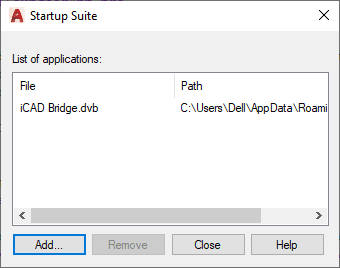
Hit
Closeto finish. -
The Load/Unload Applications dialog confirms the operation at the bottom.
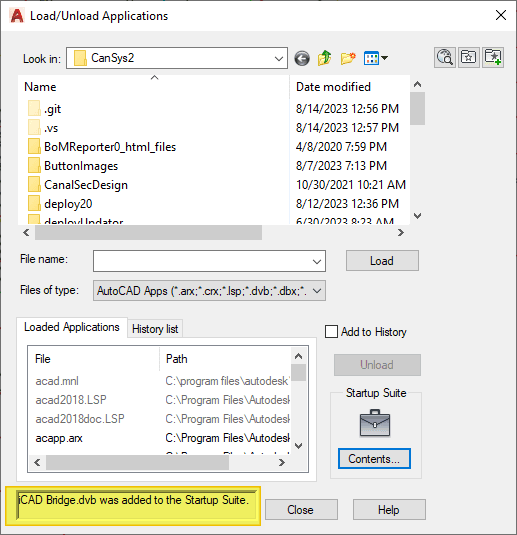
AutoCAD is now all-set to work with your product. It will always load this application on startup, and you will not have to do this setup every time.